
Sourcing, Dropshipping, Freight Consolidation, and Overseas Fulfillment with ZQ Solution

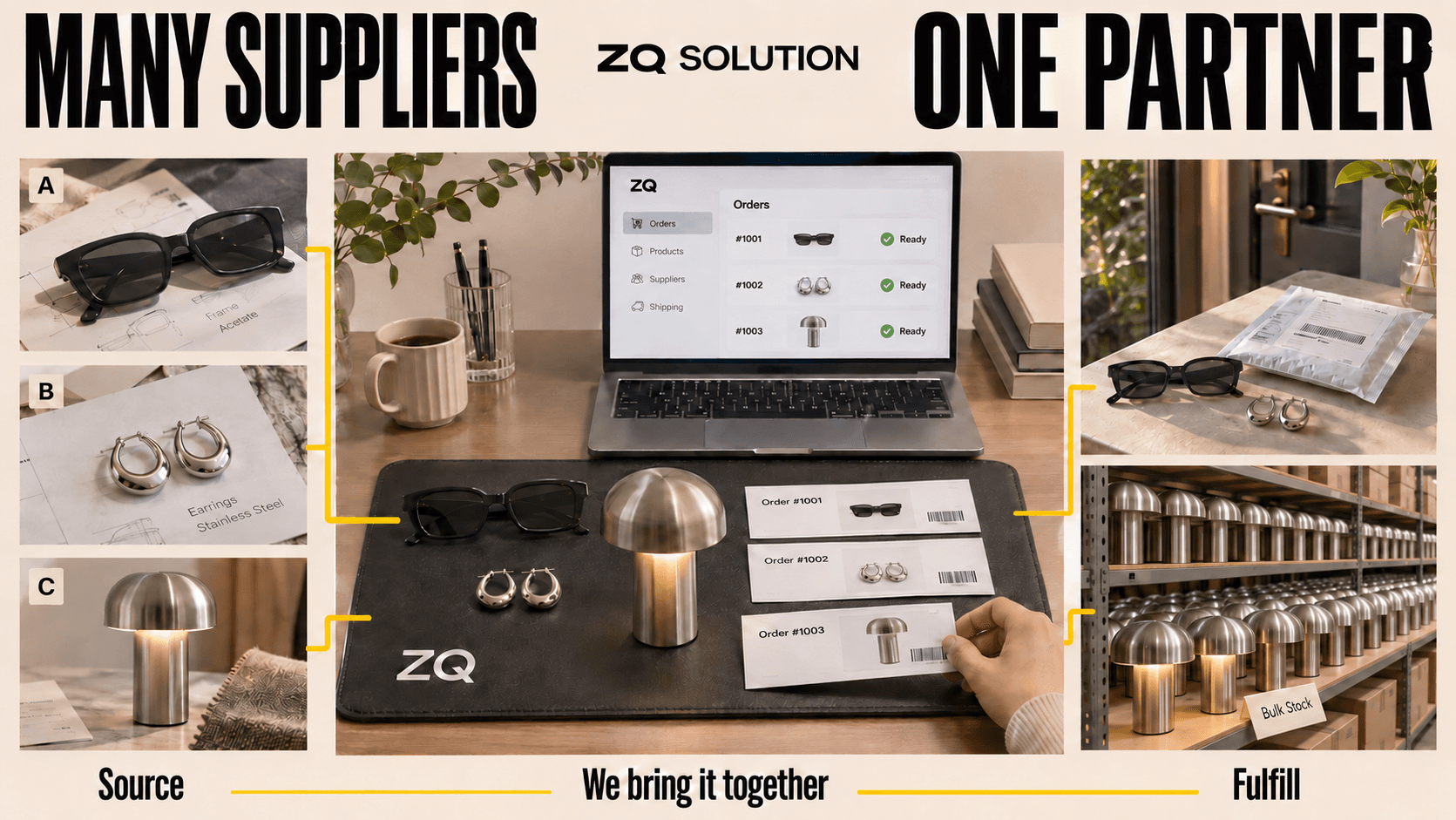
ZQ Solution is a China dropshipping agent for cross-border ecommerce sellers. We help you source and purchase products, ship individual orders, consolidate multiple SKUs from different suppliers, and stock goods overseas for local delivery.
ZQ connects to major ecommerce platforms and marketplaces so you can manage orders from your existing store and automate purchasing and shipping when it suits your operation.
Here’s how to put those services to work, from connecting your store to choosing how each SKU ships.
Which sales channels can you connect to ZQ?
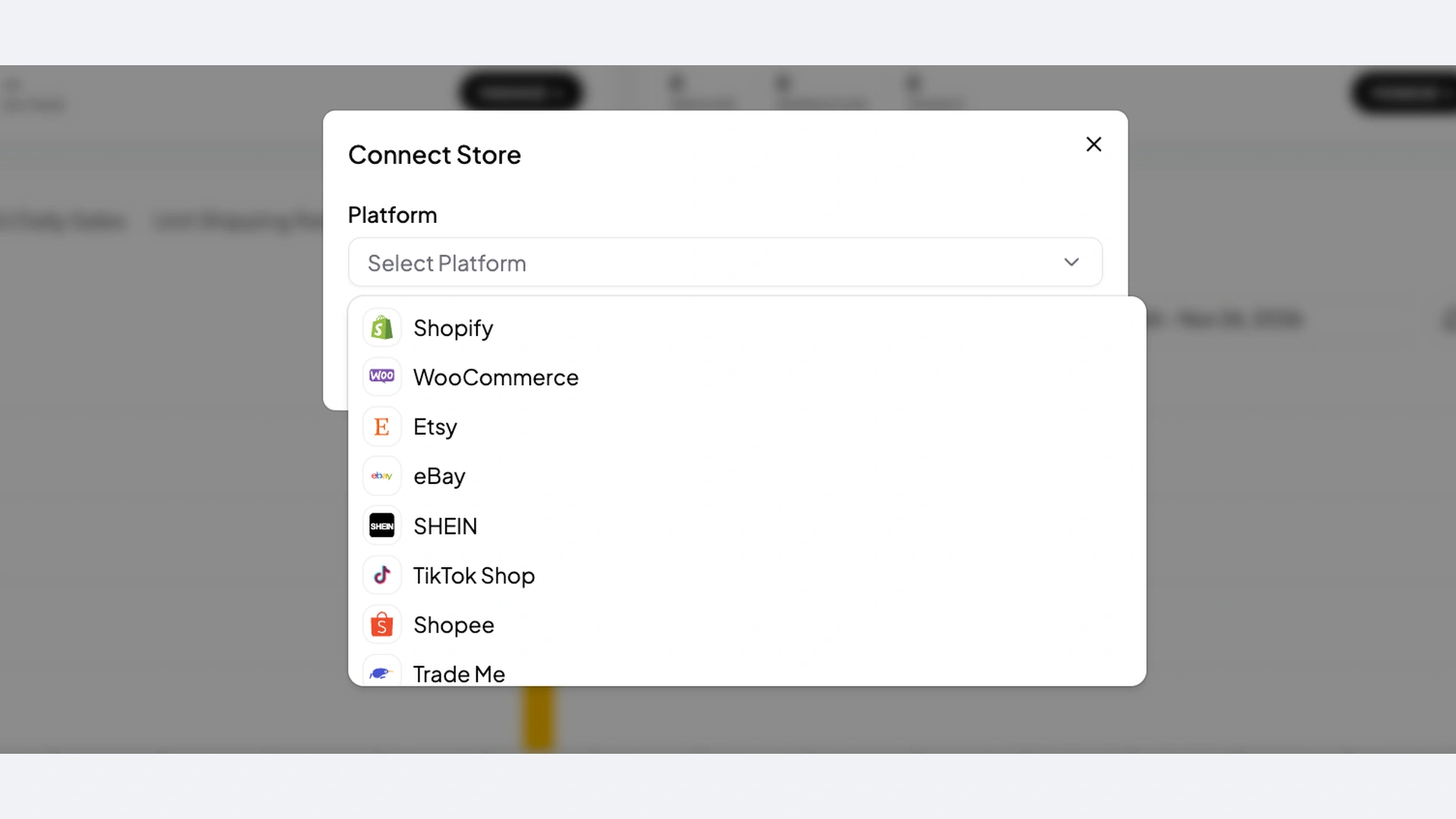
ZQ integrates with Shopify, WooCommerce, Etsy, eBay, SHEIN, TikTok Shop, Shopee, Trade Me, and Gmarket. Once connected, each channel supports product publishing, automatic order sync, and tracking updates on the original customer order.
In ZQ, go to Add New Store → Connect Store, select your platform, and follow the prompts to authorize the connection.
Four ways to source products with ZQ
Browse ZQ’s 1688 and furniture catalogs or paste a product URL to import the listing. You can also import from a 1688 or Taobao product page using the Chrome extension, or ask ZQ’s sourcing team to find a product or supplier.
1. Browse the 1688 and furniture catalogs in ZQ
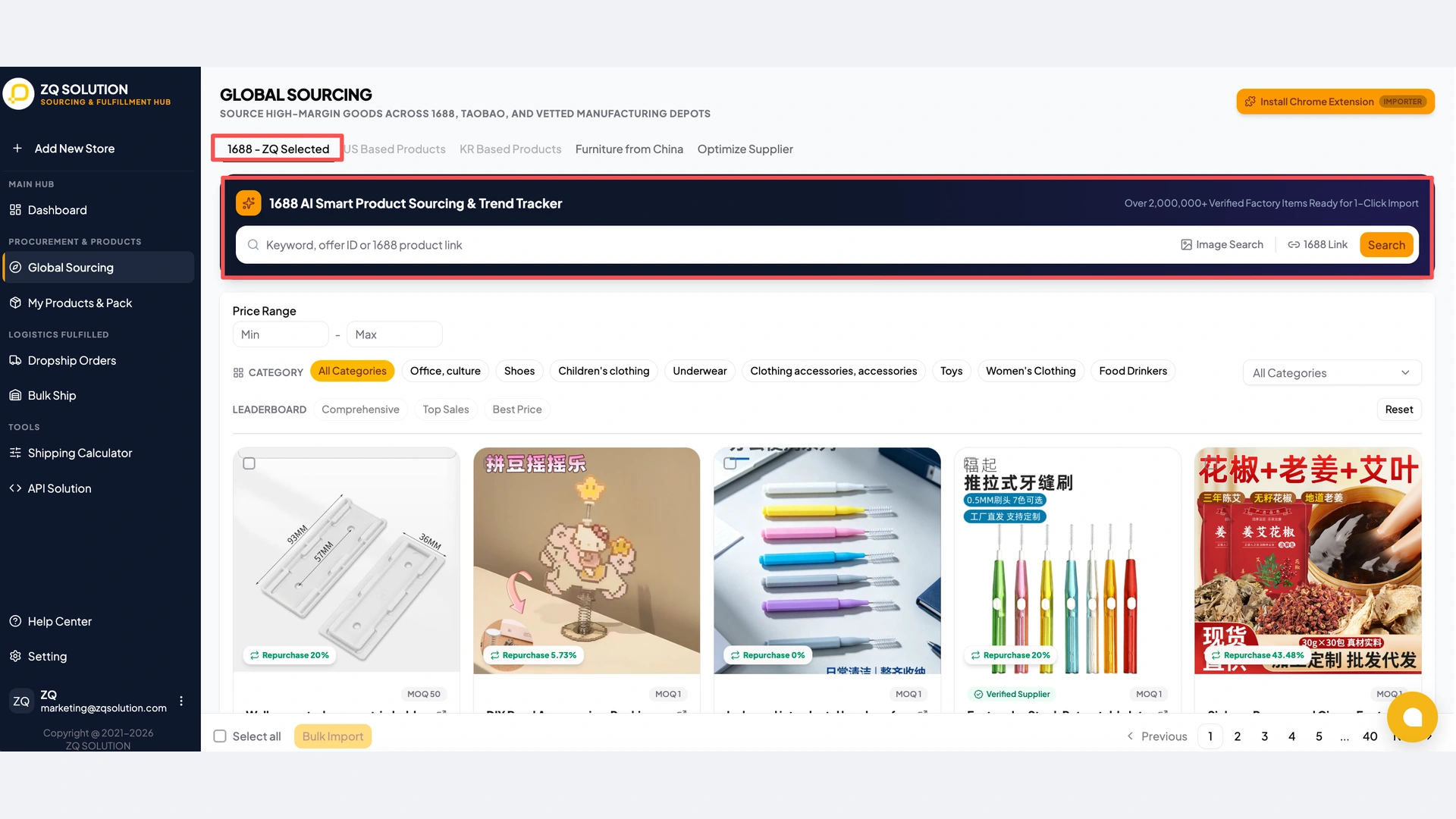
Go to Global Sourcing → 1688 - ZQ Selected. Search by keyword, Offer ID, product URL, or image, then filter by price or category. You can browse products and suppliers inside ZQ without signing in to 1688.
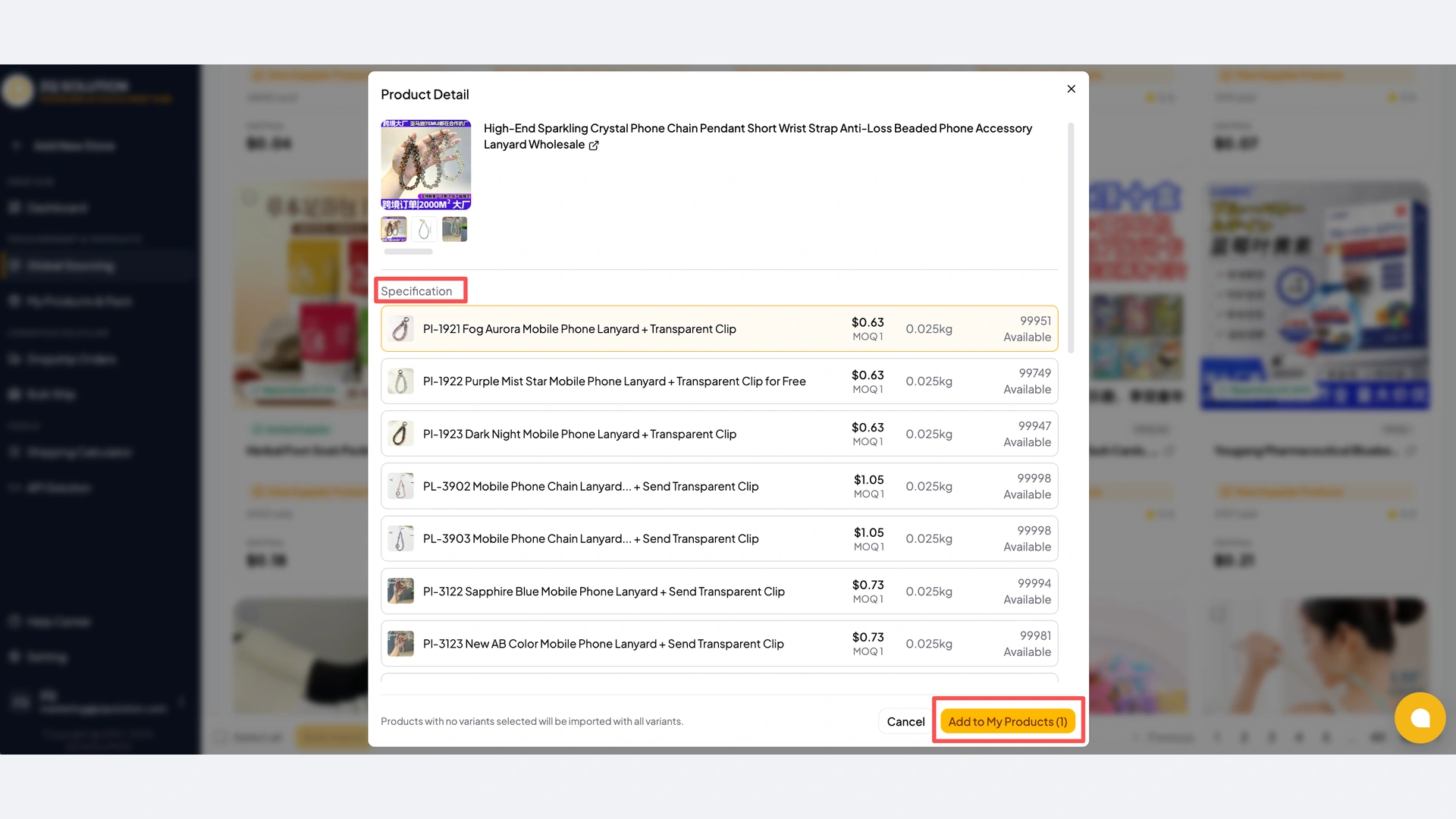
Open a product card to check the unit price, minimum order quantity, weight, and availability for each variant. Select the variants you want and click Add to My Products to add them to your ZQ product list. Leaving the variant selection empty imports every variant.
Shopping for furniture?
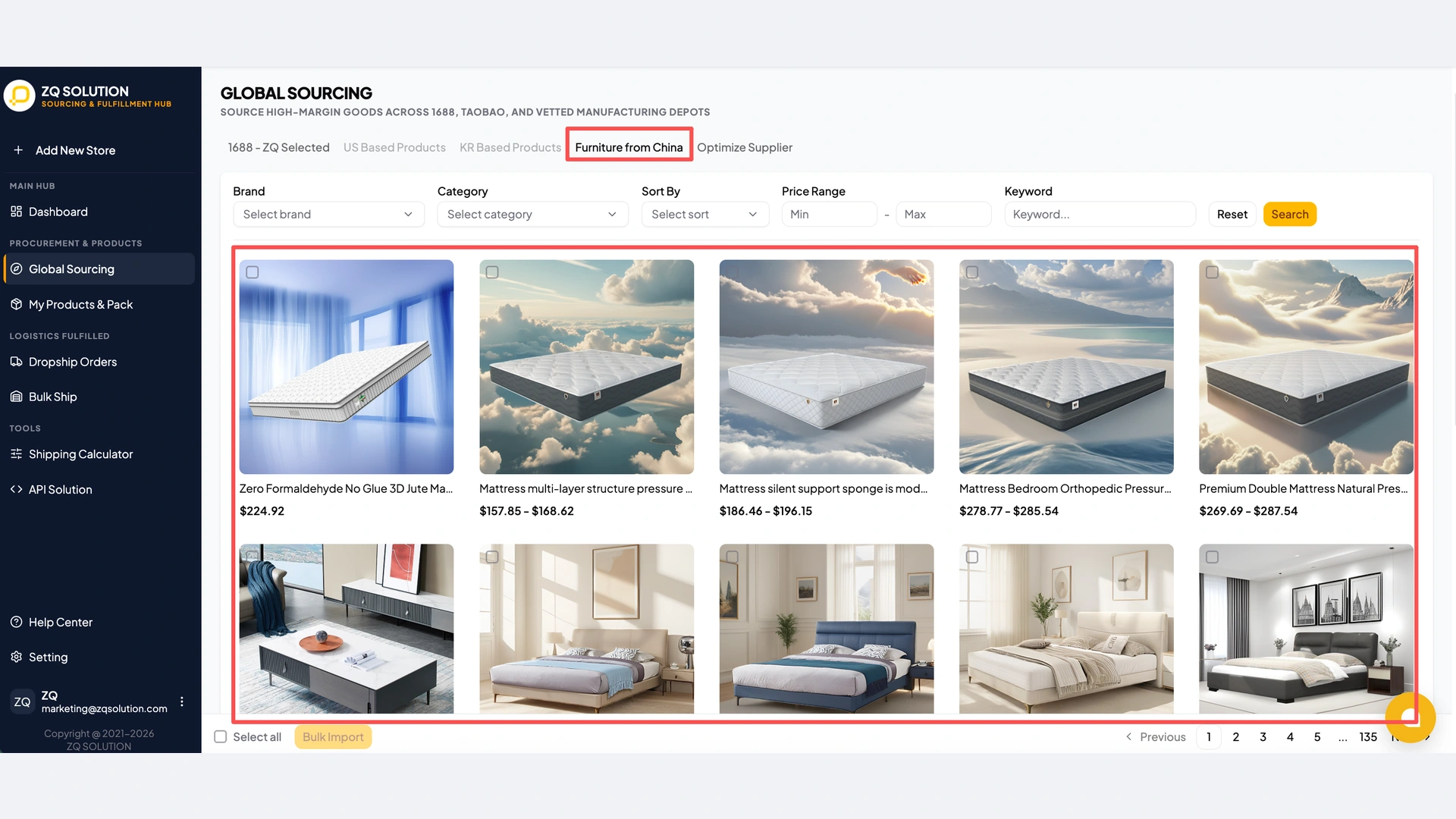
Open Global Sourcing → Furniture from China to browse by brand, category, price, or keyword. Use the packed dimensions, weight, and destination to compare shipping options for larger pieces.
2. Import a product by URL
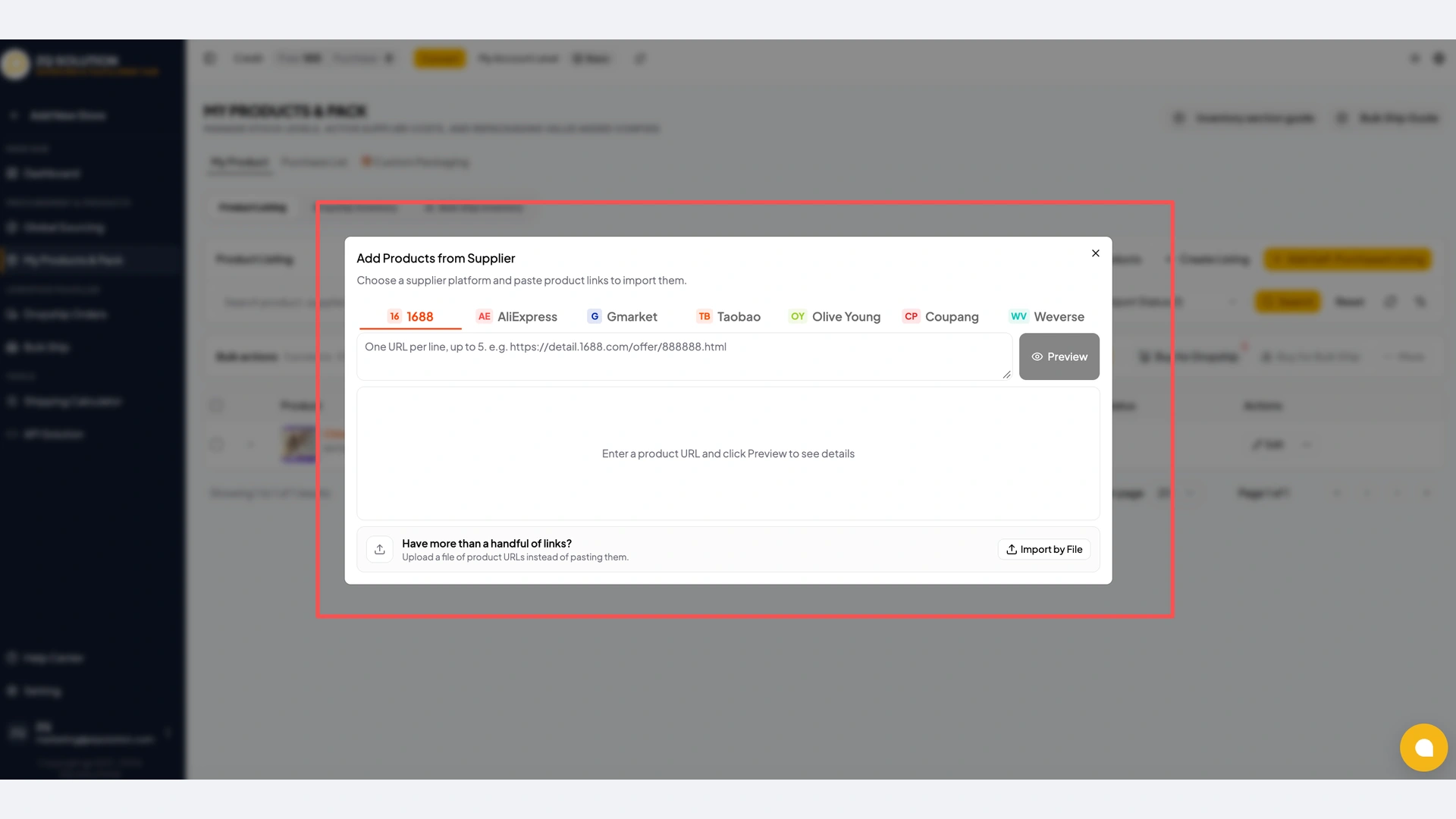
Open My Products & Pack → Product Listing → Create Listing. Select the source platform, paste up to five links with one per line, then click Preview to check the results before importing. Use Import by File for a longer list.
The importer supports 1688, Taobao, AliExpress, Gmarket, Olive Young, Coupang, and Weverse. For products from other sites, send the link to ZQ for purchasing assistance or create a listing manually. Already bought the goods? Follow the supplier intake steps.
3. Ask ZQ to find a product or another supplier
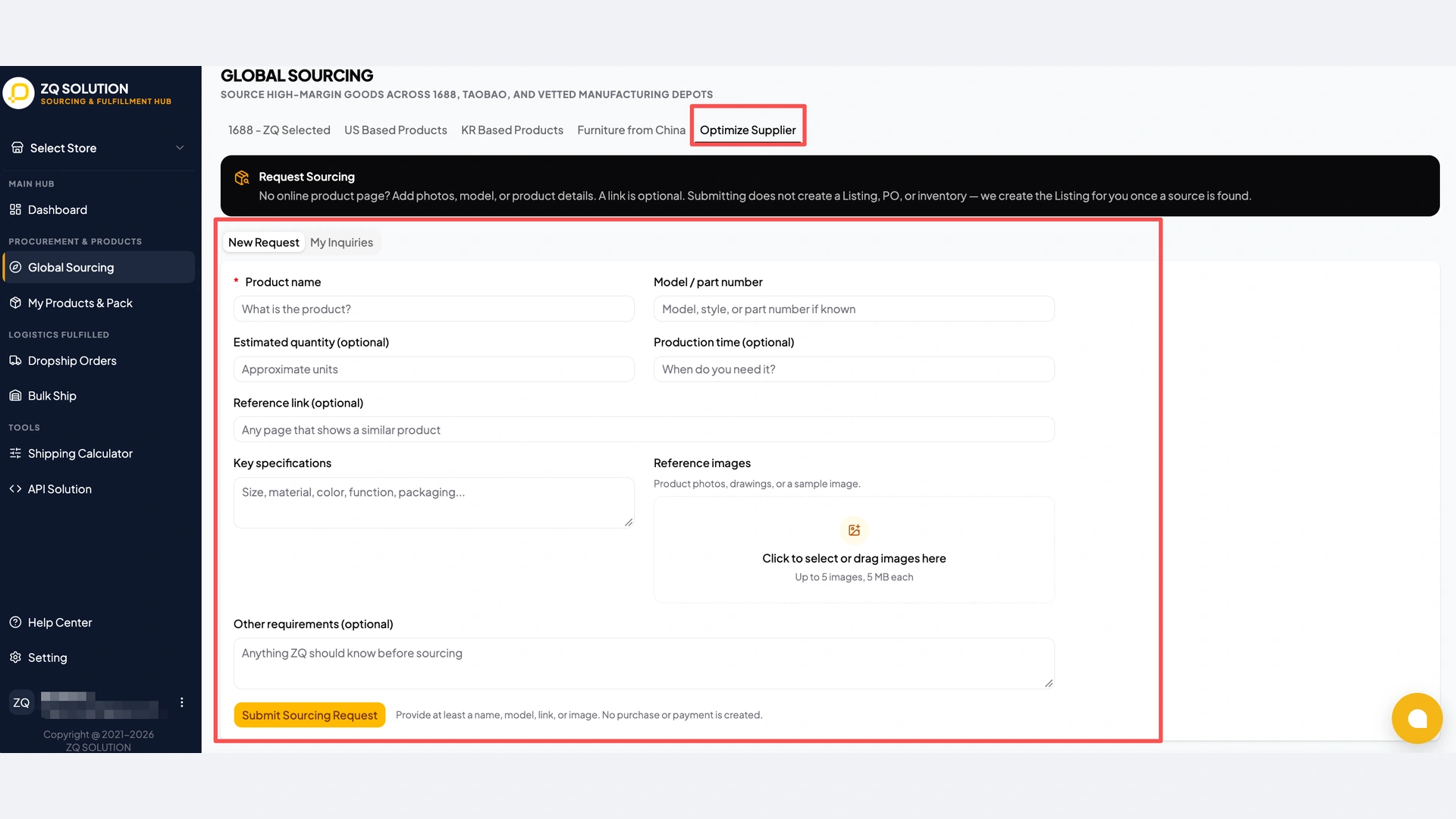
Under Global Sourcing → Optimize Supplier → New Request, enter the product name, specs, and expected quantity. Add a model number, lead-time requirement, product link, or reference photo if available. Track the request under My Inquiries.
4. Import directly from 1688 or Taobao with the Chrome extension
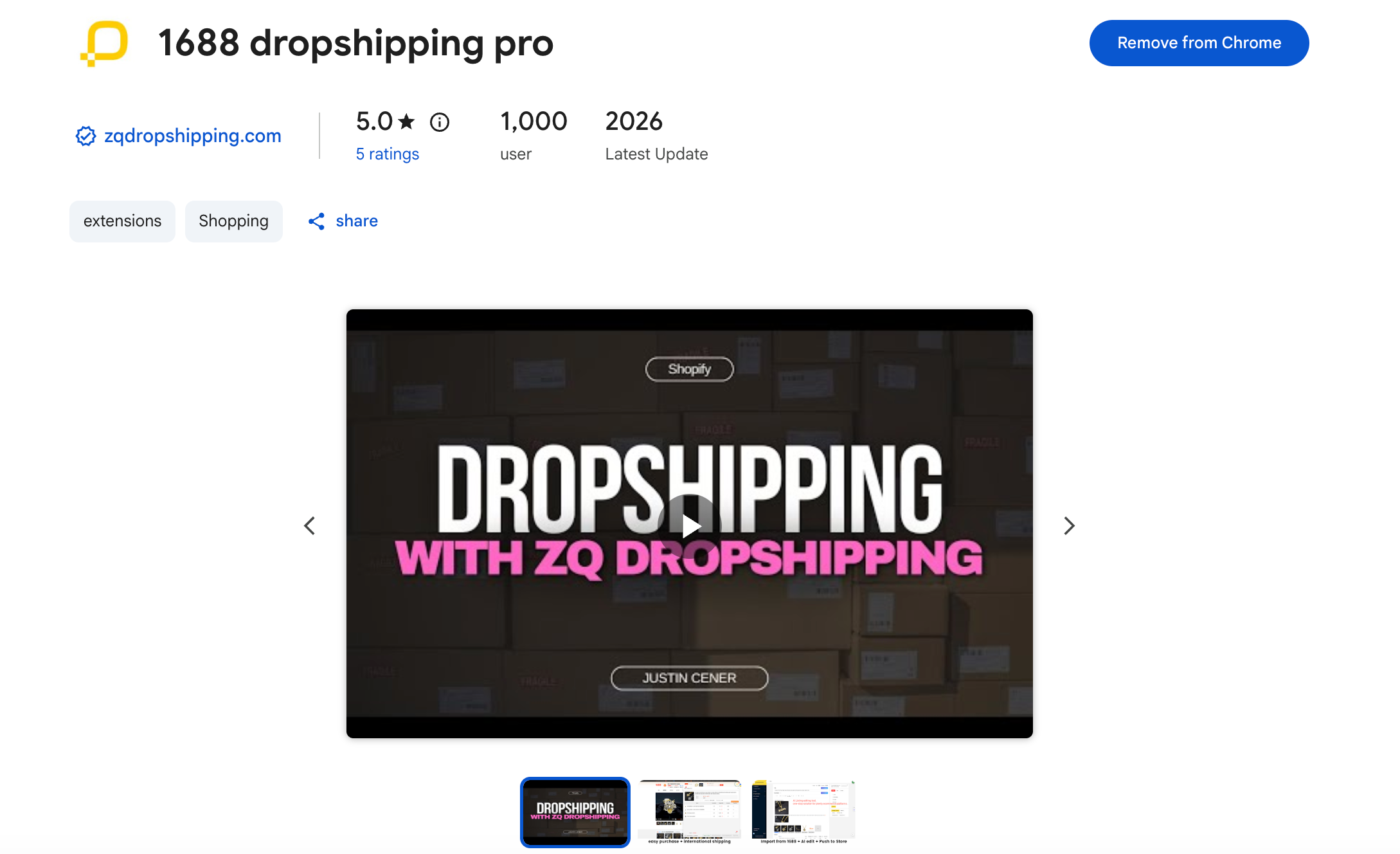
The 1688 Dropshipping Pro Chrome extension currently supports 1688 and Taobao.
On a 1688 product page, the extension opens automatically. Use its translation tools to read the listing, then choose your variants and enter a quantity.
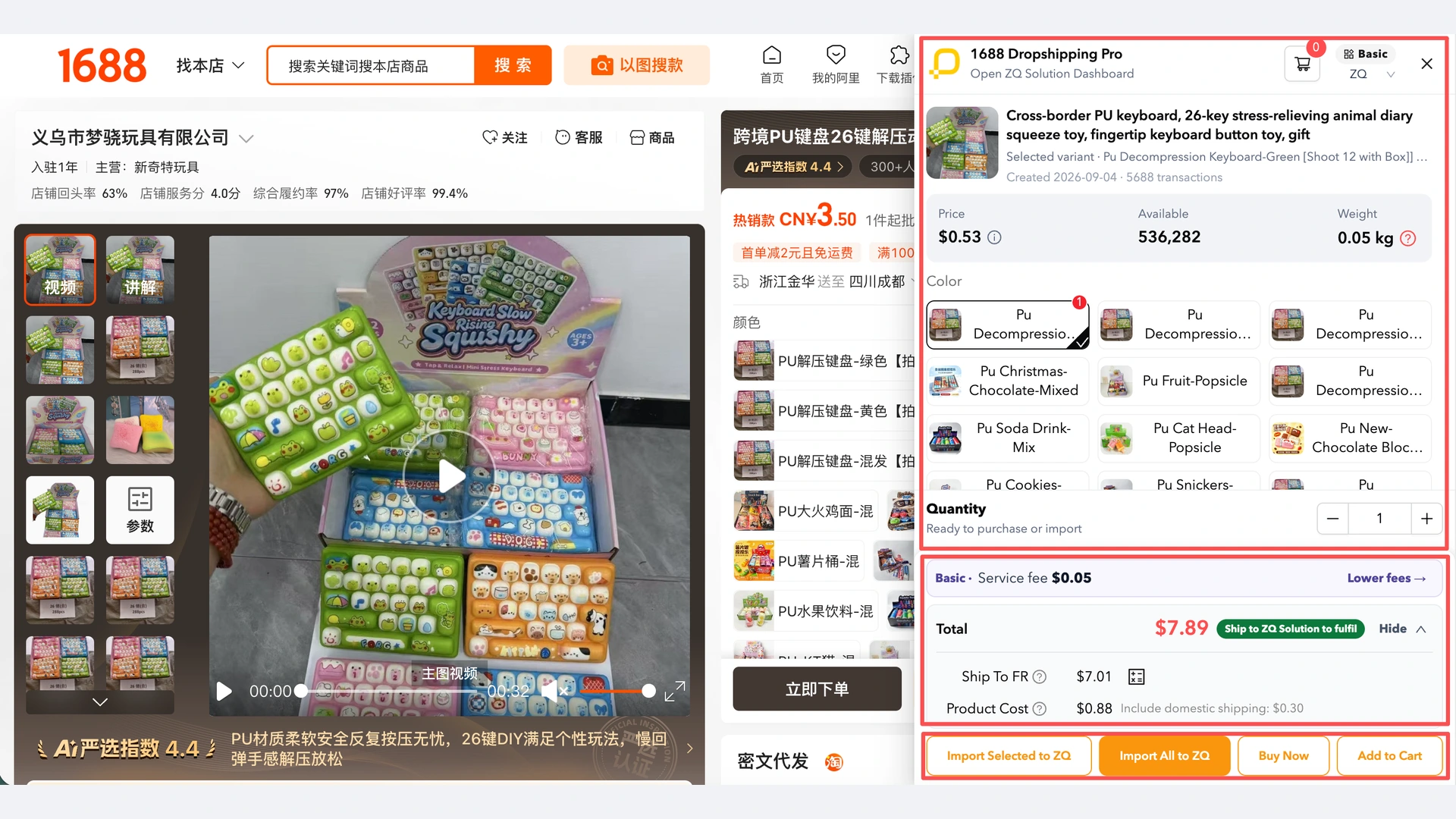
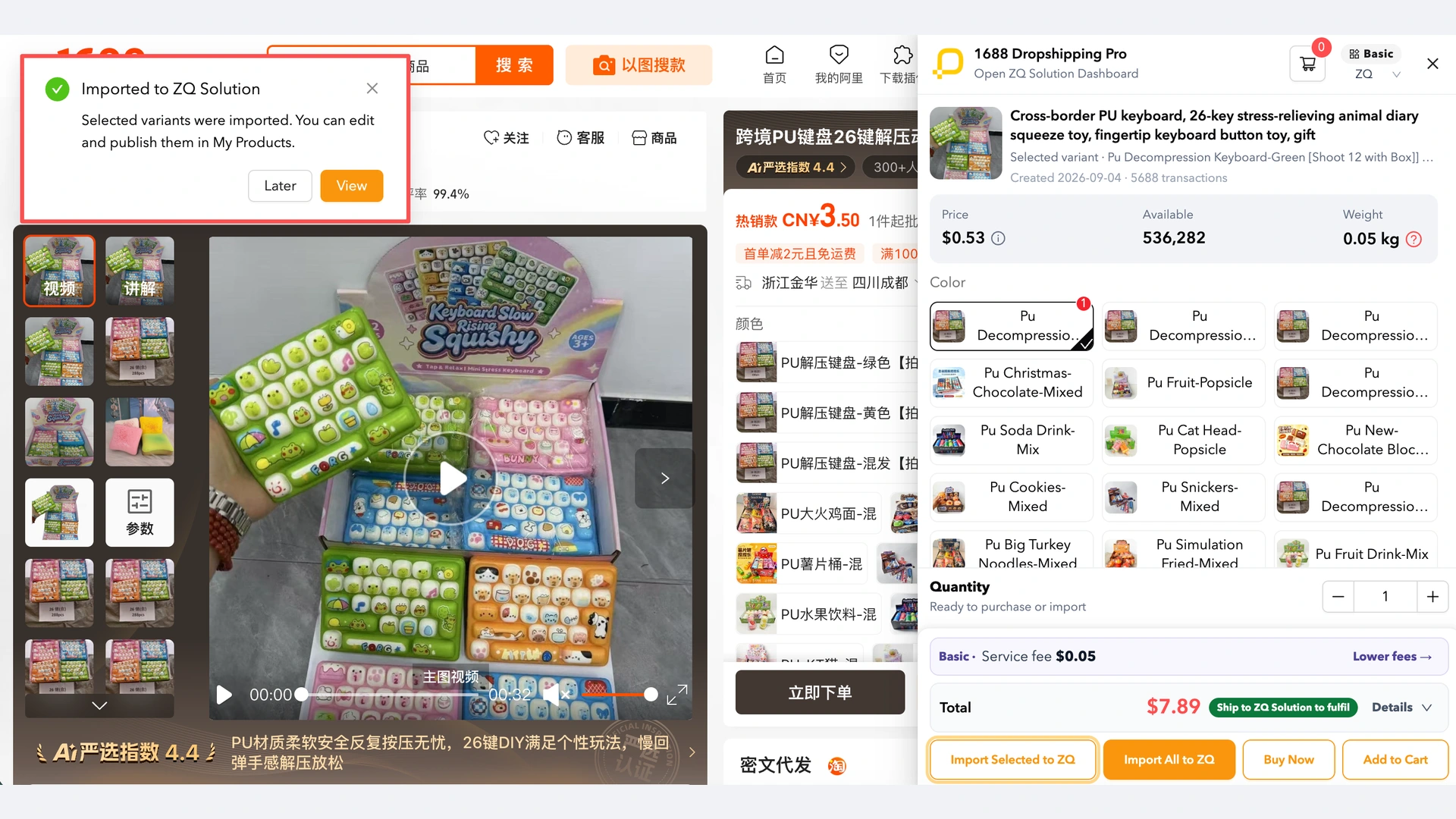
Import Selected to ZQ adds only the variants you selected. Click View to open them in ZQ or Later to keep browsing.
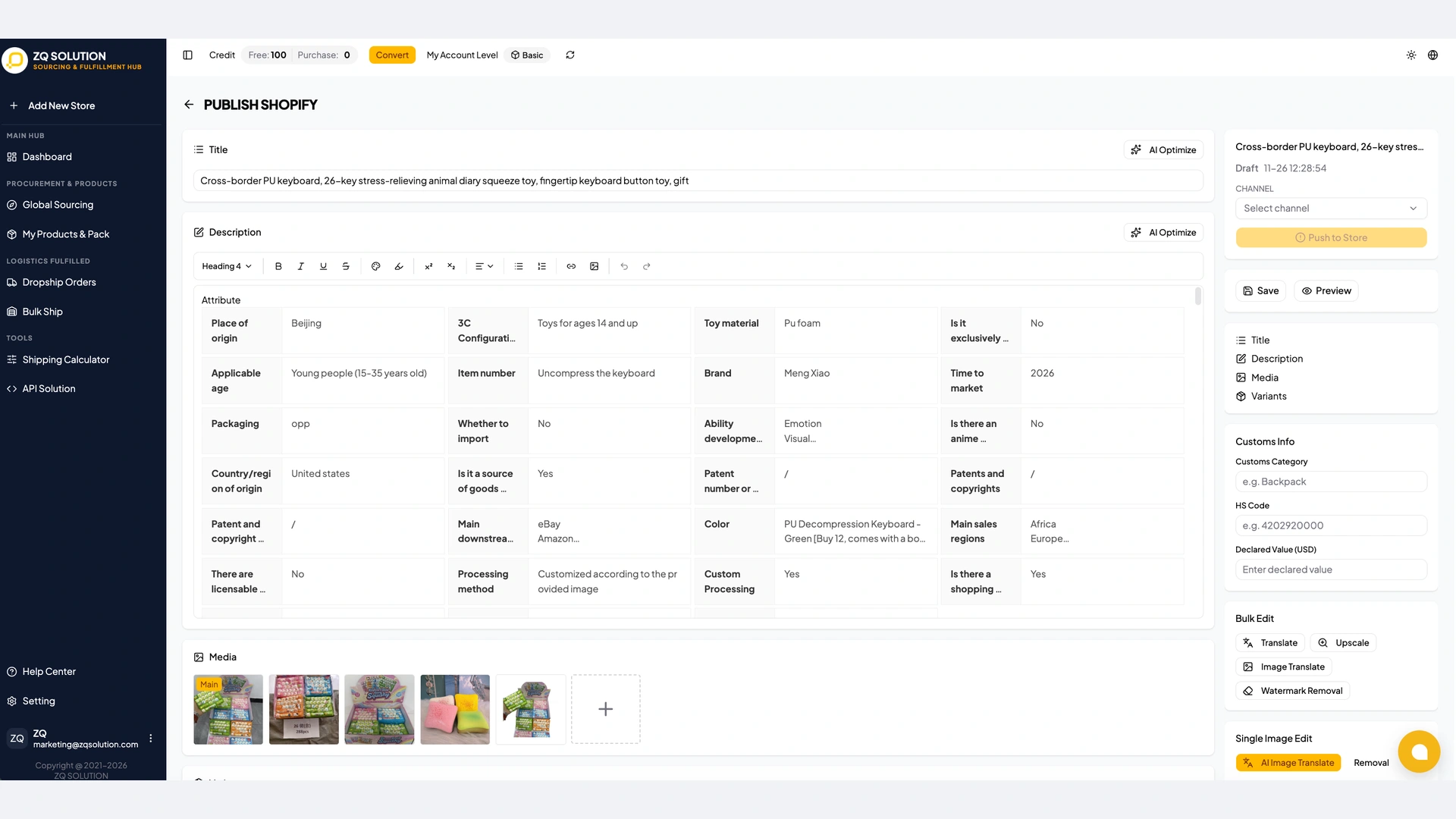
Import All to ZQ adds every variant and opens the listing editor, where you can change the title, description, images, and price.
Explore more 1688 sourcing tips.
How do you send goods from your own supplier to ZQ?
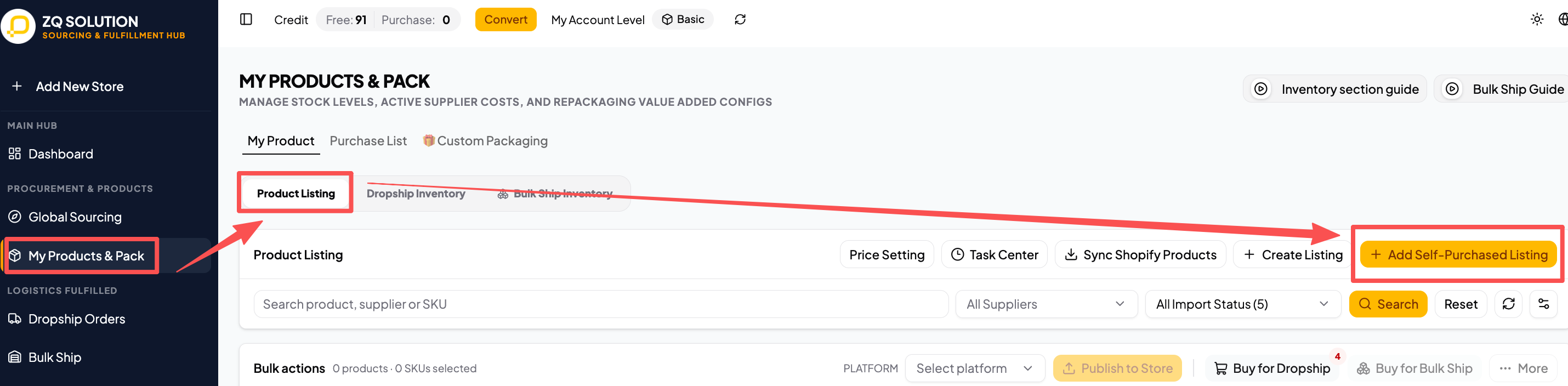
Before ZQ can receive your goods into inventory, create the product and register the incoming shipment. Start at My Products & Pack → Product Listing → Add Self-Purchased Listing. Enter the product name, image, shipping country, supplier, and each variant’s unit price and weight. Use Bulk CSV to create multiple listings. Once the listing is set up, your supplier can ship the goods to ZQ. For consolidation, follow the Bulk Ship intake steps.
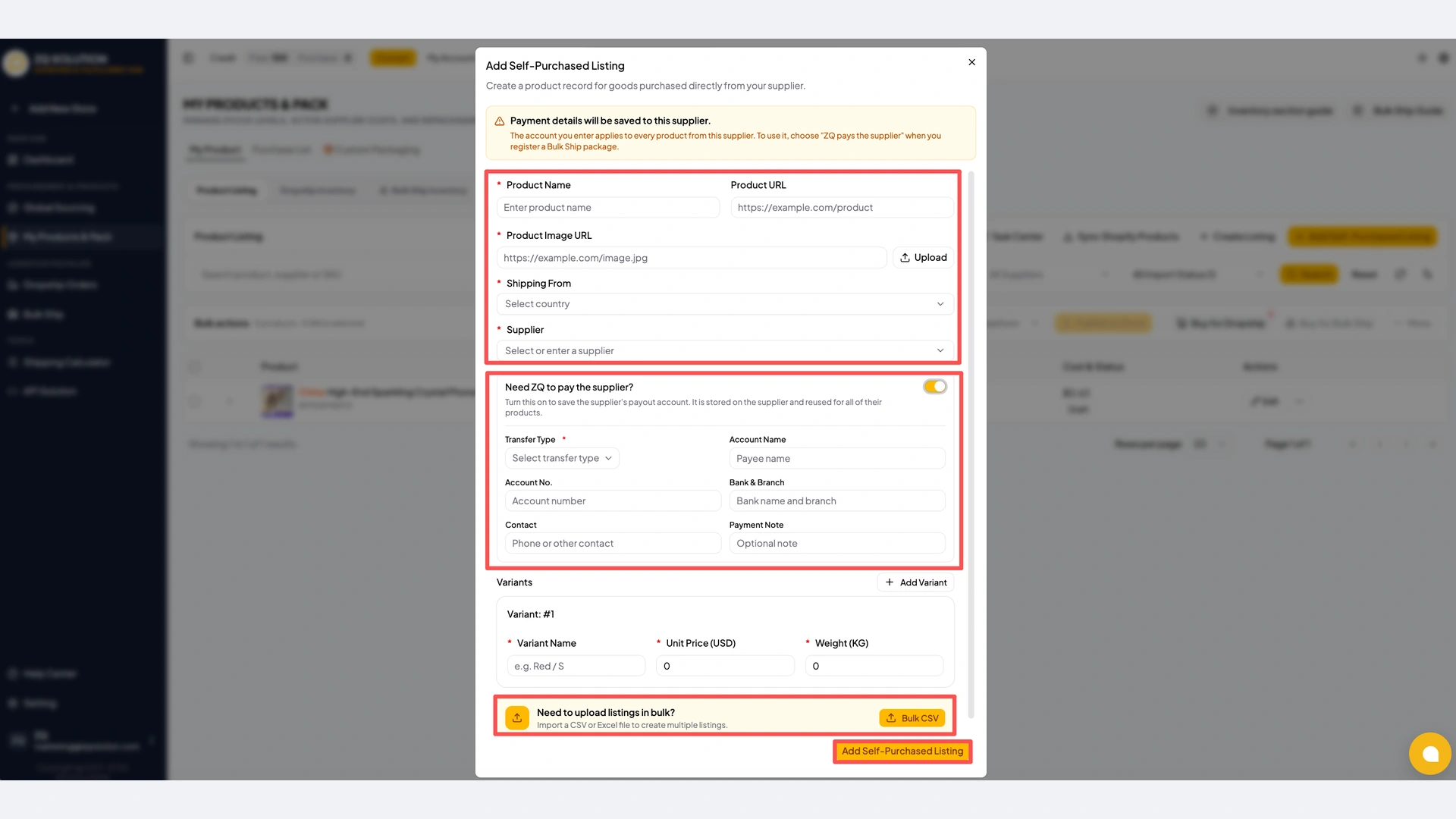
You can pay your supplier directly or ask ZQ to pay on your behalf once you’ve agreed on the price, quantities, and specs. This can help if your supplier only accepts WeChat Pay or Alipay.
What to do after your supplier ships
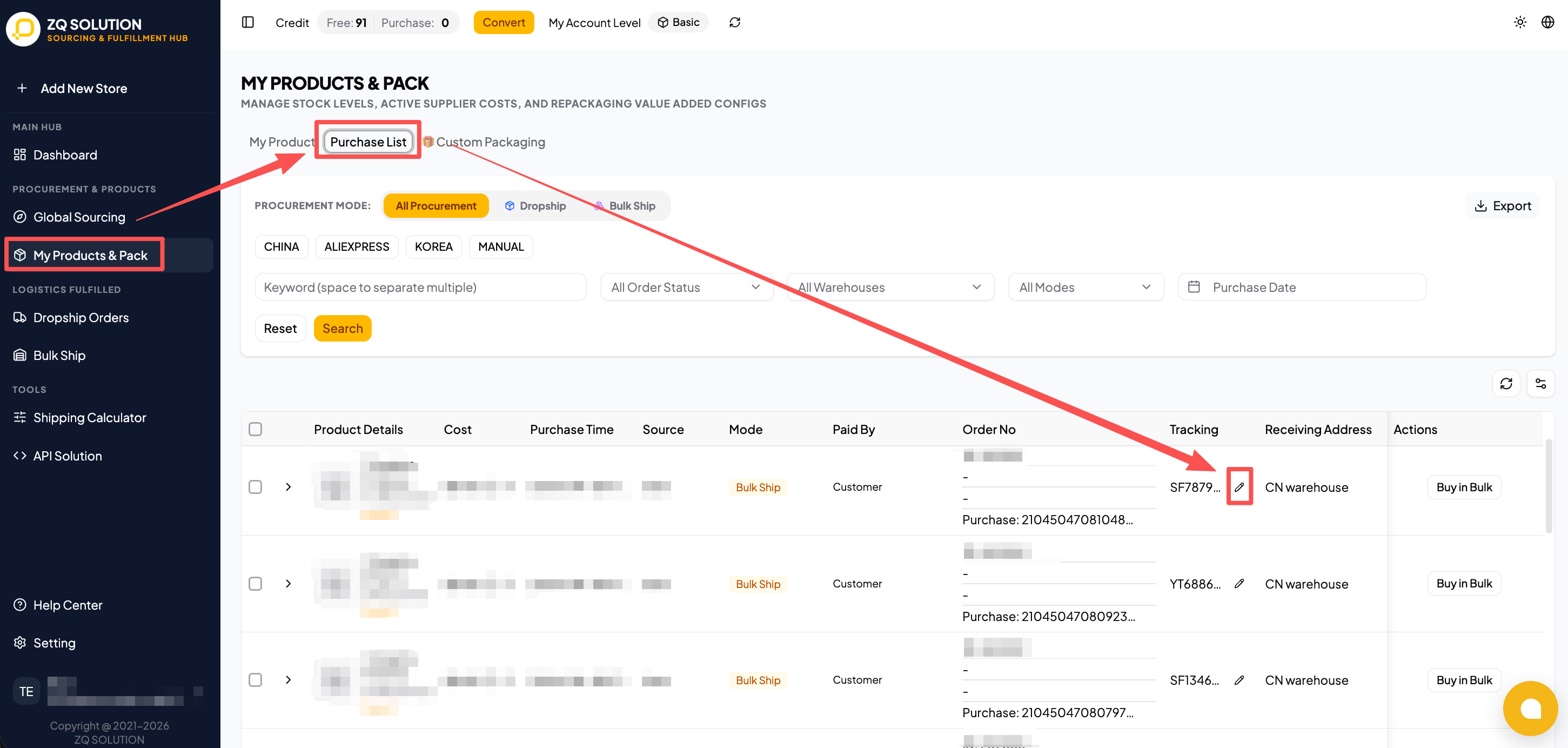
Once your supplier gives you the domestic tracking number, go to My Products & Pack → Purchase List. Find the purchase record, click the pencil icon in the Tracking column, then add or update the tracking number and save it. The warehouse needs that number to match the parcel to your inbound record and receive it into inventory.
How do you edit a listing and publish it to your store?
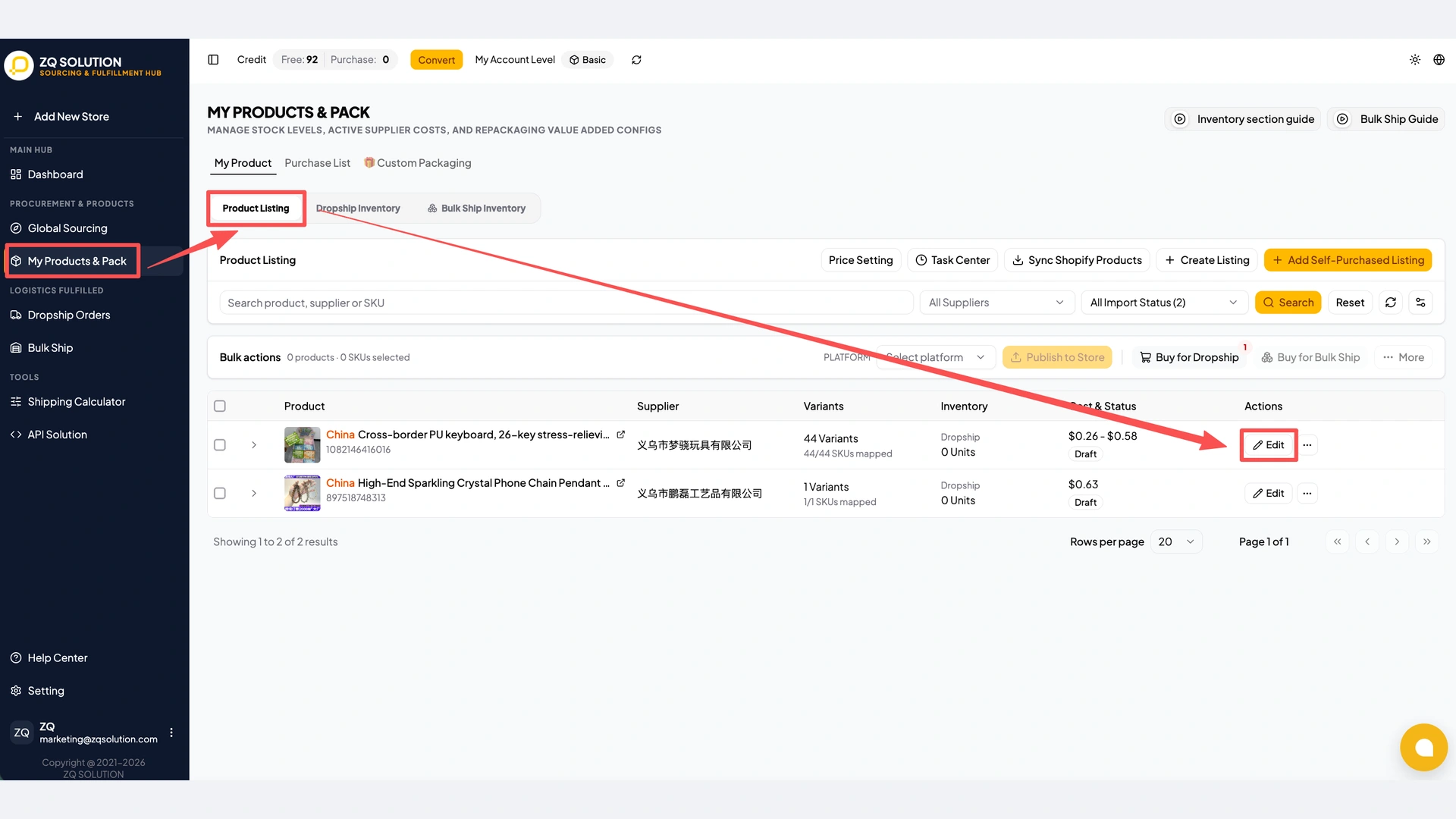
Imported products appear in your ZQ product list. Open an existing listing from My Products & Pack → Product Listing → Edit.
Set the product details and retail price
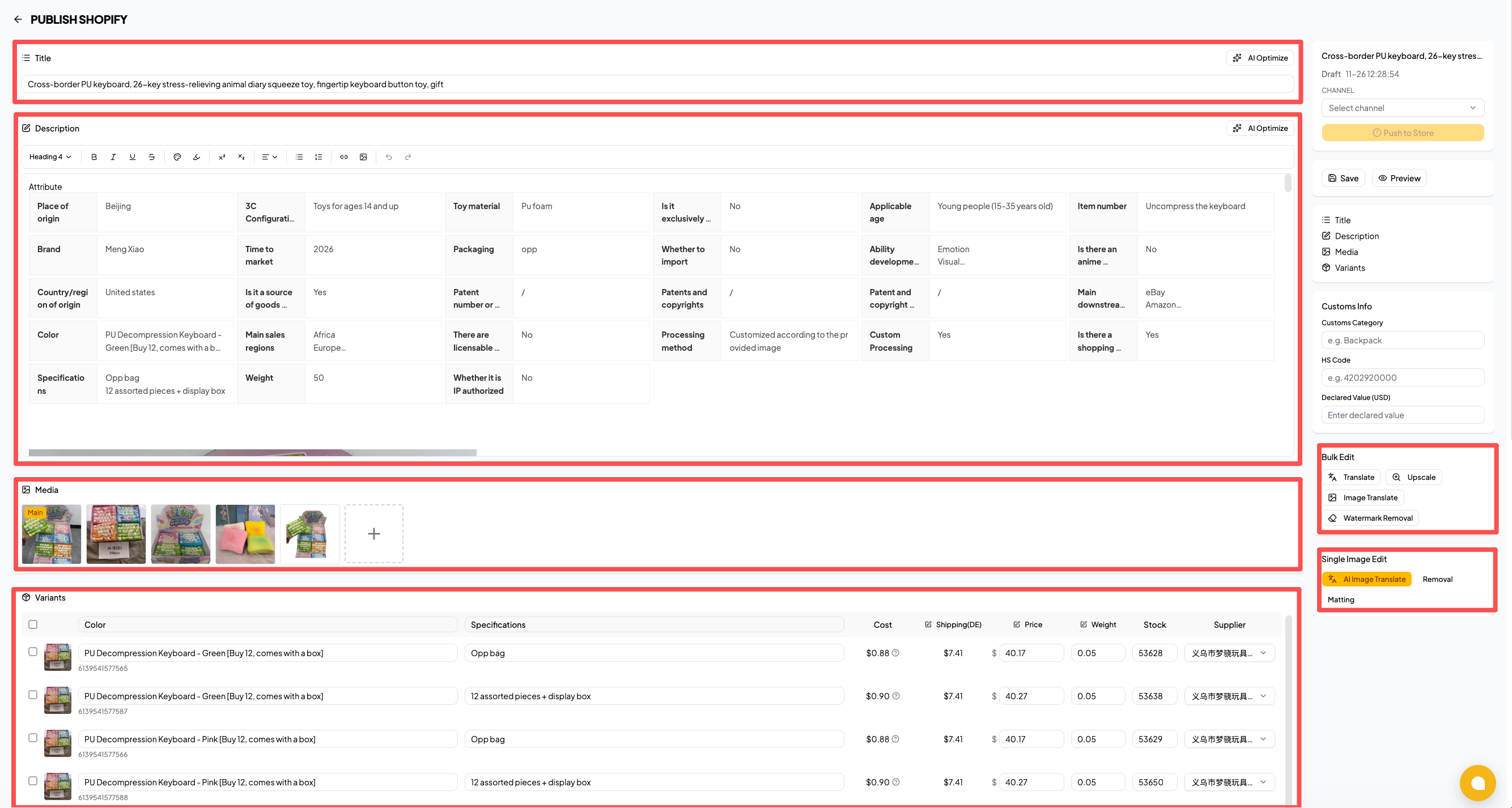
Edit the title, description, and variants yourself or use AI Optimize to refine the title and description. Set a fixed price or use a multiplier on the total cost, with your preferred currency and price ending. When importing from a product URL, ZQ can pull in images from the original product page for you to choose from.
Translate text on the original product images
Select a product image in the Media section and open AI Image Translate. Choose the source and target languages, then start the translation.
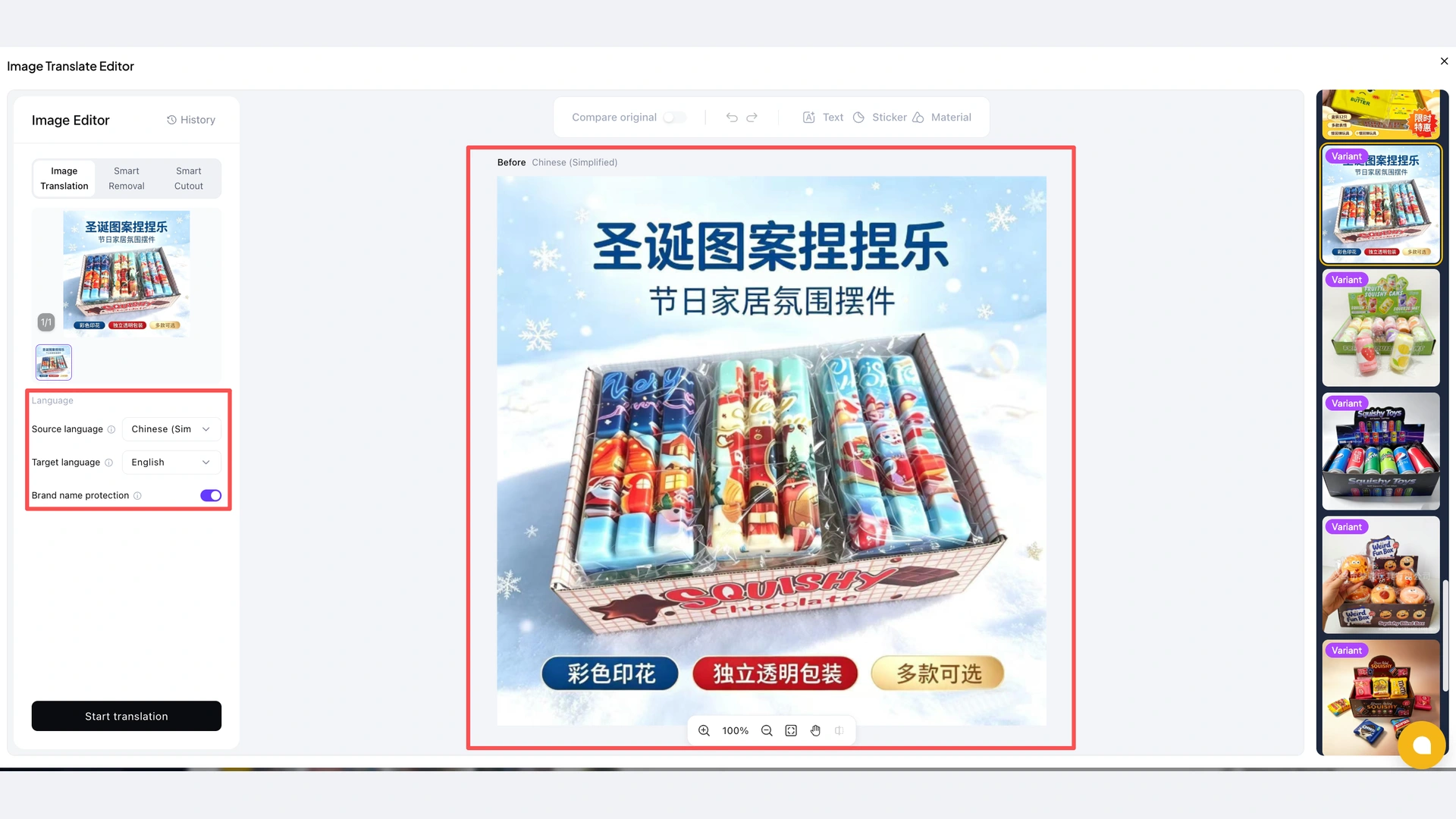
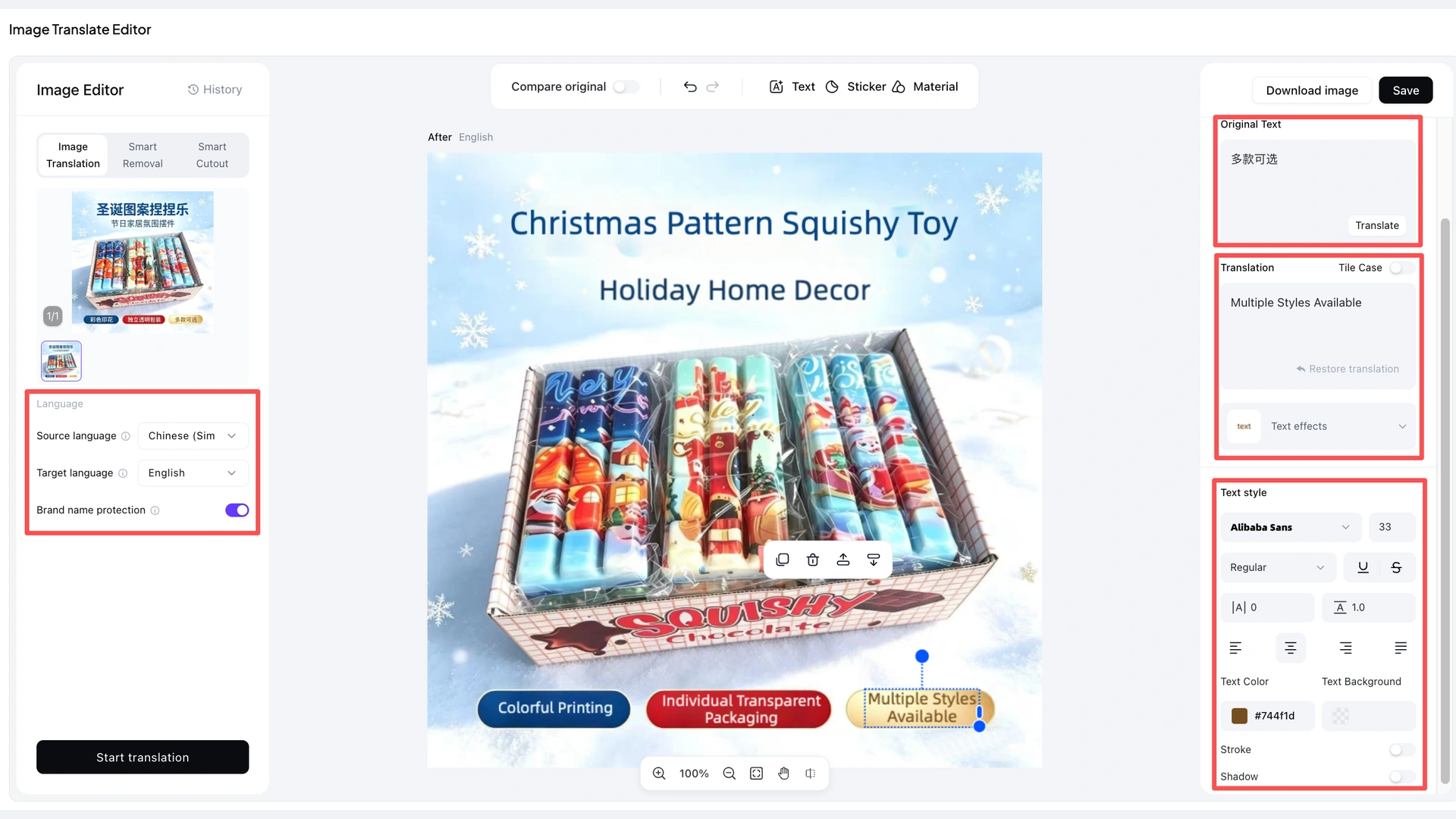
Select individual text blocks to fix awkward translations. You can adjust the font, size, color, alignment, and placement so the edited image fits your storefront.
You can also use Smart Cutout to remove the background from a product image.
Save or publish your listing
Click Preview to review the full listing. Use Save to keep a draft, or choose a connected channel and click Push to Store to publish.
How do order sync, automatic fulfillment, and tracking work?
- Orders sync from your connected store. ZQ brings the product, variant, quantity, and delivery details into
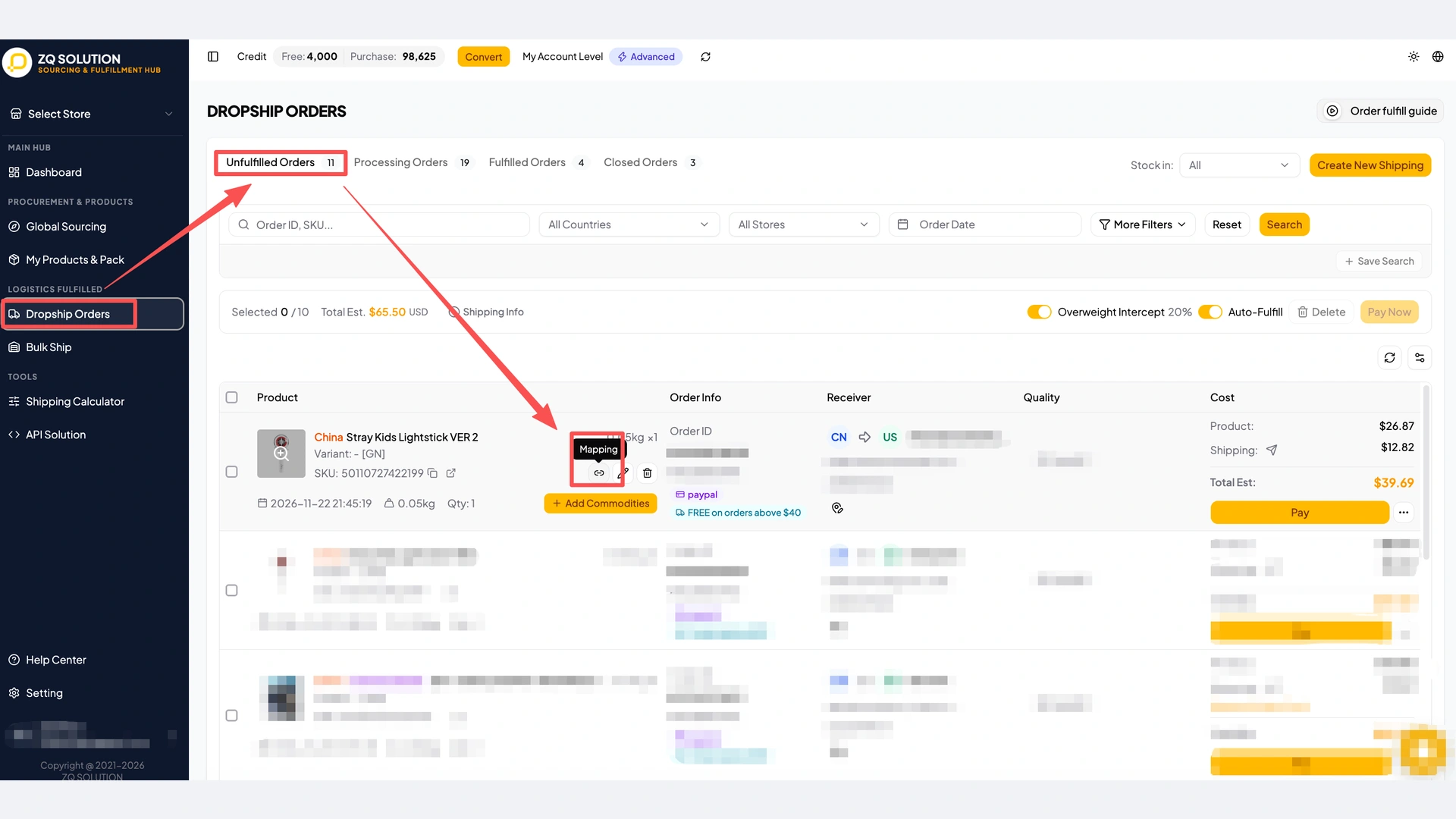
Dropship Orders. - Map each new SKU. Under
Unfulfilled Orders, clickMappingon the order and match the exact store variant to the corresponding ZQ variant. Future orders for the same SKU can reuse that match.
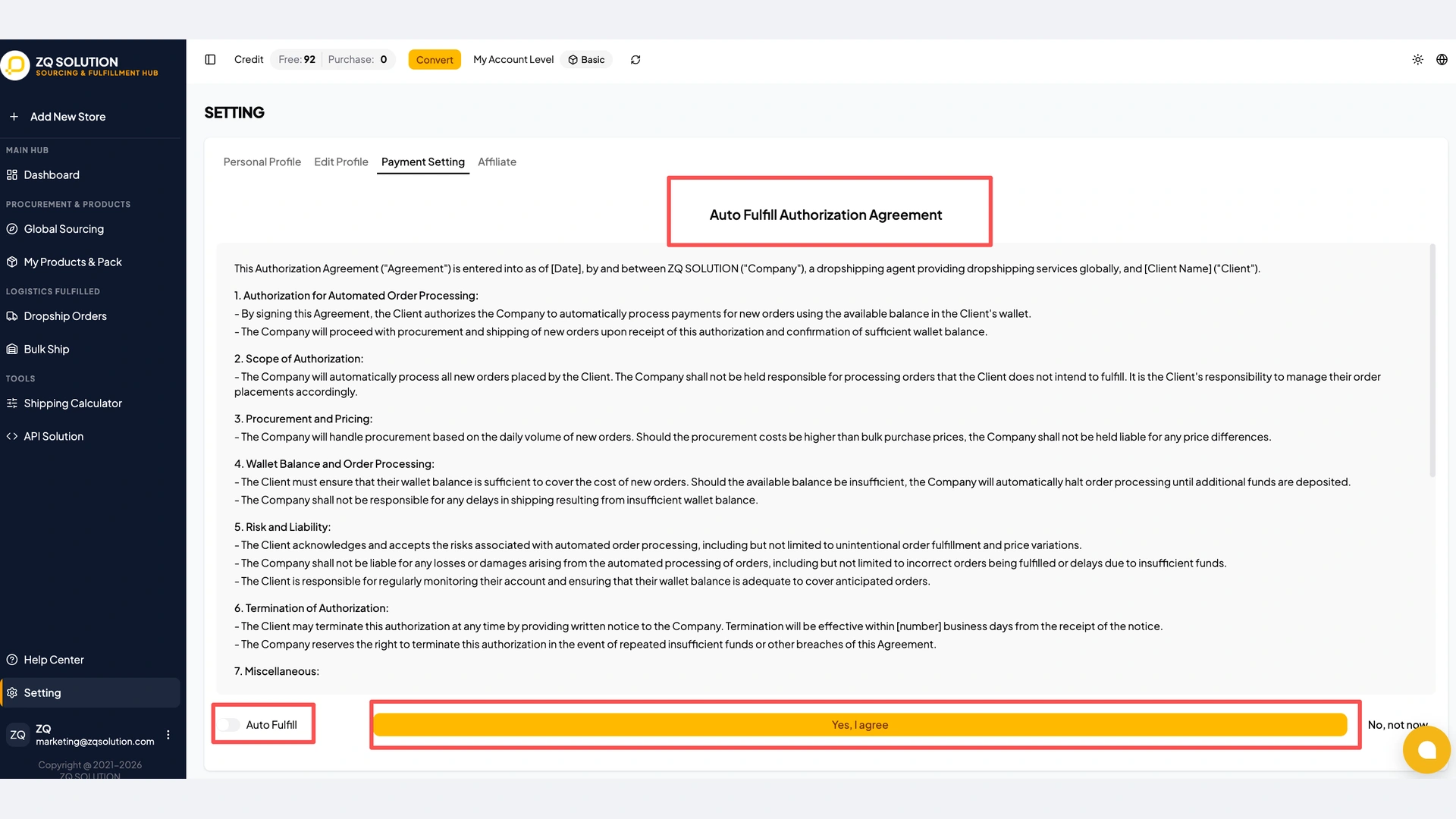
- Pay manually or enable Auto-Fulfill. Use
Payto pay for orders individually. For automatic fulfillment, go toSetting → Payment Setting, accept the authorization, and enableAuto-Fulfill. With the SKU mapped and sufficient wallet funds, ZQ can deduct the authorized amount and arrange purchasing and shipping. Processing pauses if the balance is too low. If an item is out of stock or its price or specifications change, ZQ follows the rules you’ve set in your profile. If the change falls outside what you’ve authorized, ZQ asks you to confirm how to proceed.
- Tracking updates appear on the original order. Once the tracking number is generated, ZQ sends it back to the original order on your sales channel, where your customer can see it. You can follow unfulfilled, processing, fulfilled, and closed orders in ZQ.
Manual orders, bulk imports, and API access
Use Create New Shipping to enter a single order, or import multiple orders with the Excel template. Advanced and Enterprise plans offer API access for orders, products, inventory, shipments, and tracking, with webhook support.
Reconcile purchasing and sales
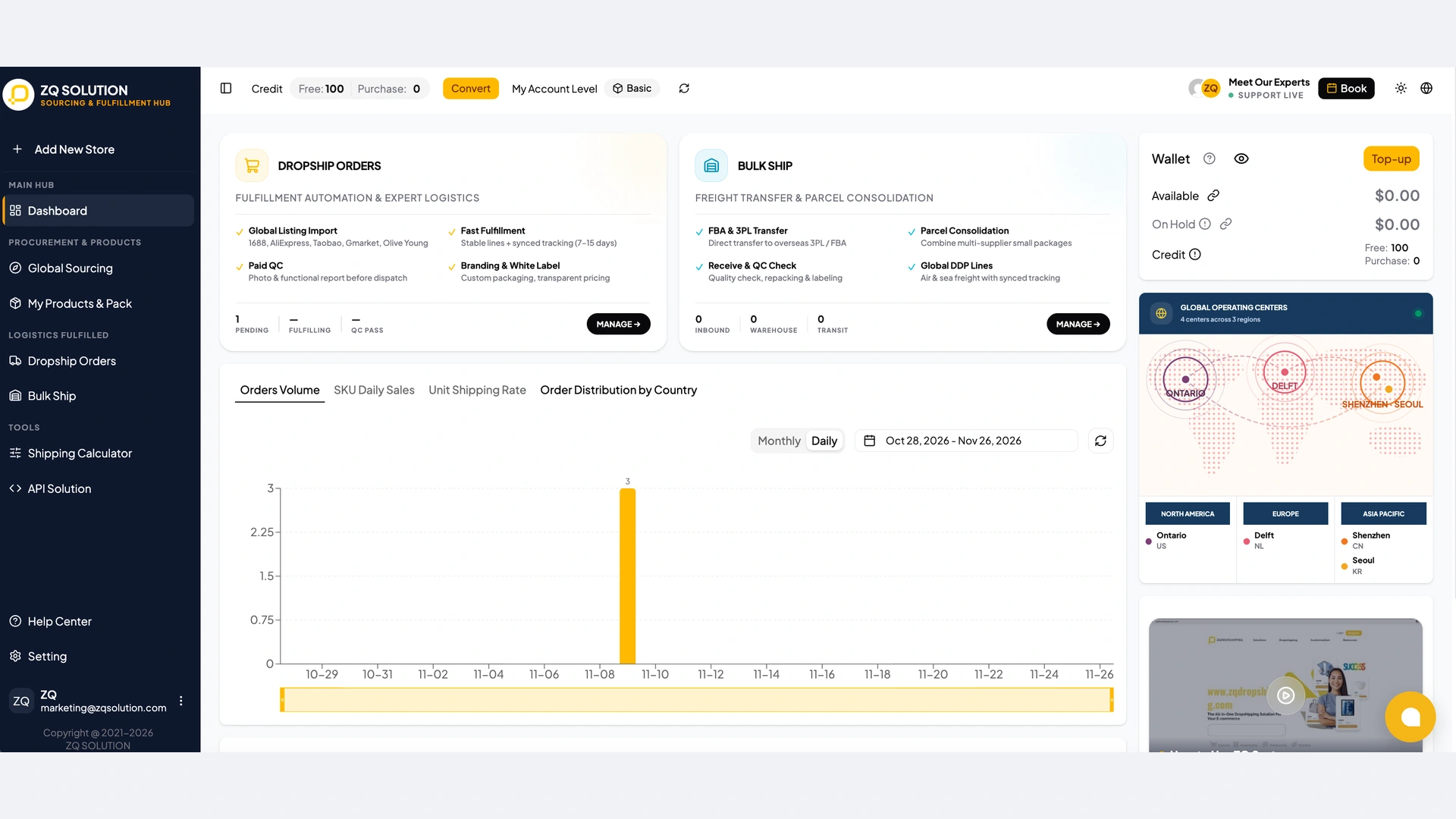
The Dashboard shows order volume, daily sales by SKU, per-unit freight, destination breakdowns, and wallet information. Use Dropship Orders for fulfillment details and Purchase List for purchase records, then reconcile those costs against your store’s sales by order.
When should you ship from China or stock overseas?
Base your decision on sales and turnover for each SKU. You can keep slow-moving products or SKUs with unpredictable demand in China and ship as orders come in. If your European orders are concentrated in a few SKUs with steady sales, compare the per-order cost of shipping them from China with the cost of stocking and fulfilling them from a European warehouse. If direct shipping still costs less, you can keep those SKUs on that route.
ZQ offers fulfillment from Shenzhen (China), Delft (Netherlands), Ontario (California), and Seoul (South Korea). A two-warehouse setup lets you take advantage of lower labor costs in Shenzhen for labeling, relabeling, repacking, kitting, or consolidation. You can then send the prepared stock to an overseas ZQ warehouse for storage, picking, and last-mile delivery.
You can use both routes in the same store. Bulk Ship can consolidate replenishment stock from multiple suppliers before it moves to an overseas warehouse. When calculating the cost for the same SKU and market, use your expected sales and inventory turnover. For overseas stock, factor in inbound freight, import costs, receiving, storage, outbound handling, and last mile. Slow sell-through can raise storage and inventory costs per order.
How do purchasing, inspection, and shipping work for dropshipping?
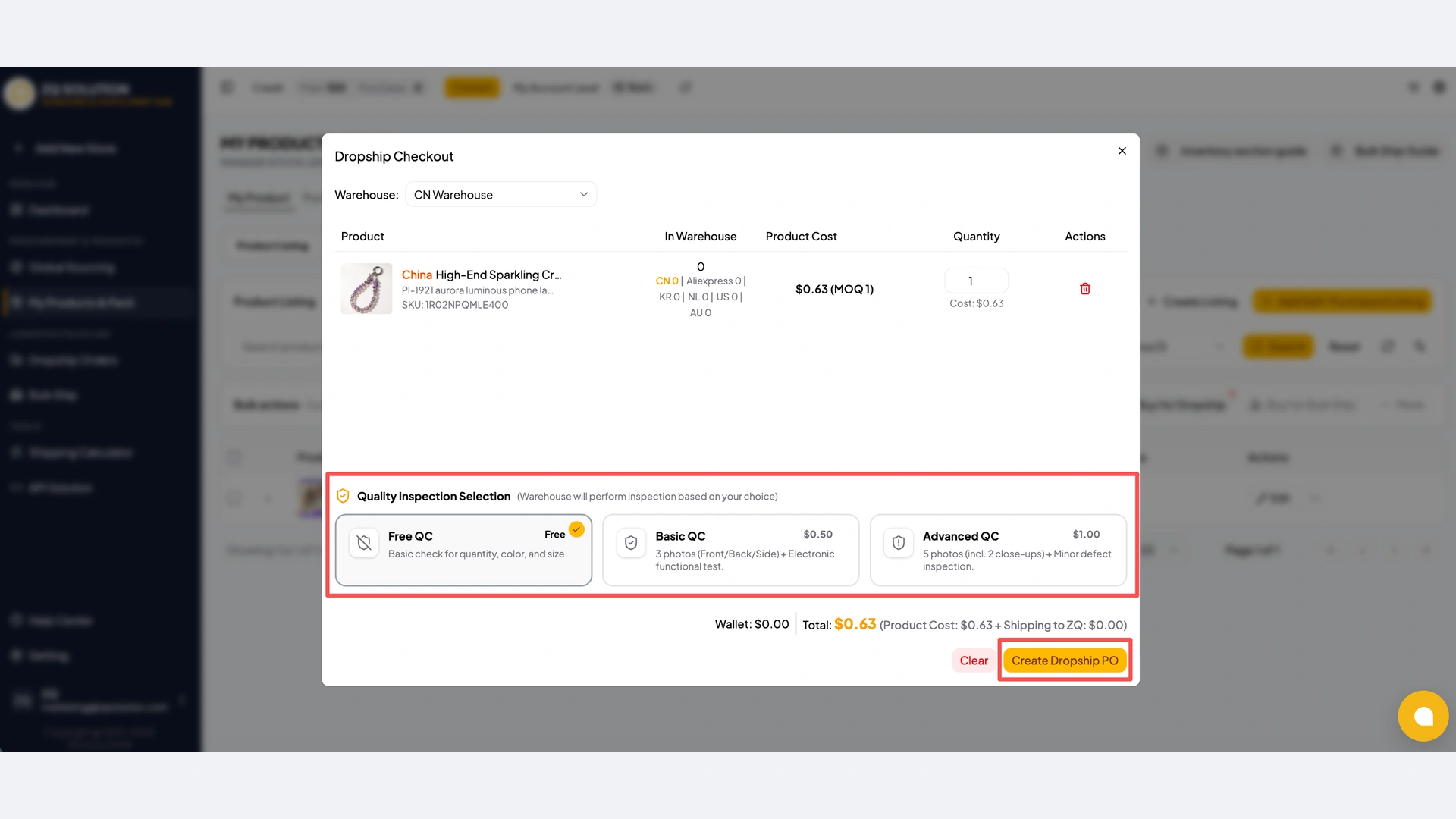
When your ZQ warehouse has available stock, it can pick and ship items as customer orders come in. To purchase stock for dropshipping, select the product in Product Listing and click Buy for Dropship. Choose the receiving warehouse, variant, and quantity, then check the product price and the supplier-to-warehouse freight shown under Shipping to ZQ. Choose an inspection level and click Create Dropship PO. Once you create the purchase order, you can follow the record in Dropship Orders.
| Inspection level | Fee | What ZQ checks |
|---|---|---|
| Free QC (default) | Free | Quick check of visible details such as quantity, color, and size. |
| Basic QC | US$0.50 per selected SKU | Front, back, and side photos, plus basic appearance or function checks where applicable. |
| Advanced QC | US$1.00 per selected SKU | Five photos, including two close-ups, and checks for minor defects. |
The warehouse receives, inspects, labels, packs, and dispatches goods as agreed. ZQ can follow up on issues such as parcels stalled in transit or failed deliveries. If you run multiple stores or have steady sales, you can keep shipping individual orders directly from China and stock selected SKUs overseas.
How does Bulk Ship work from purchase to dispatch?
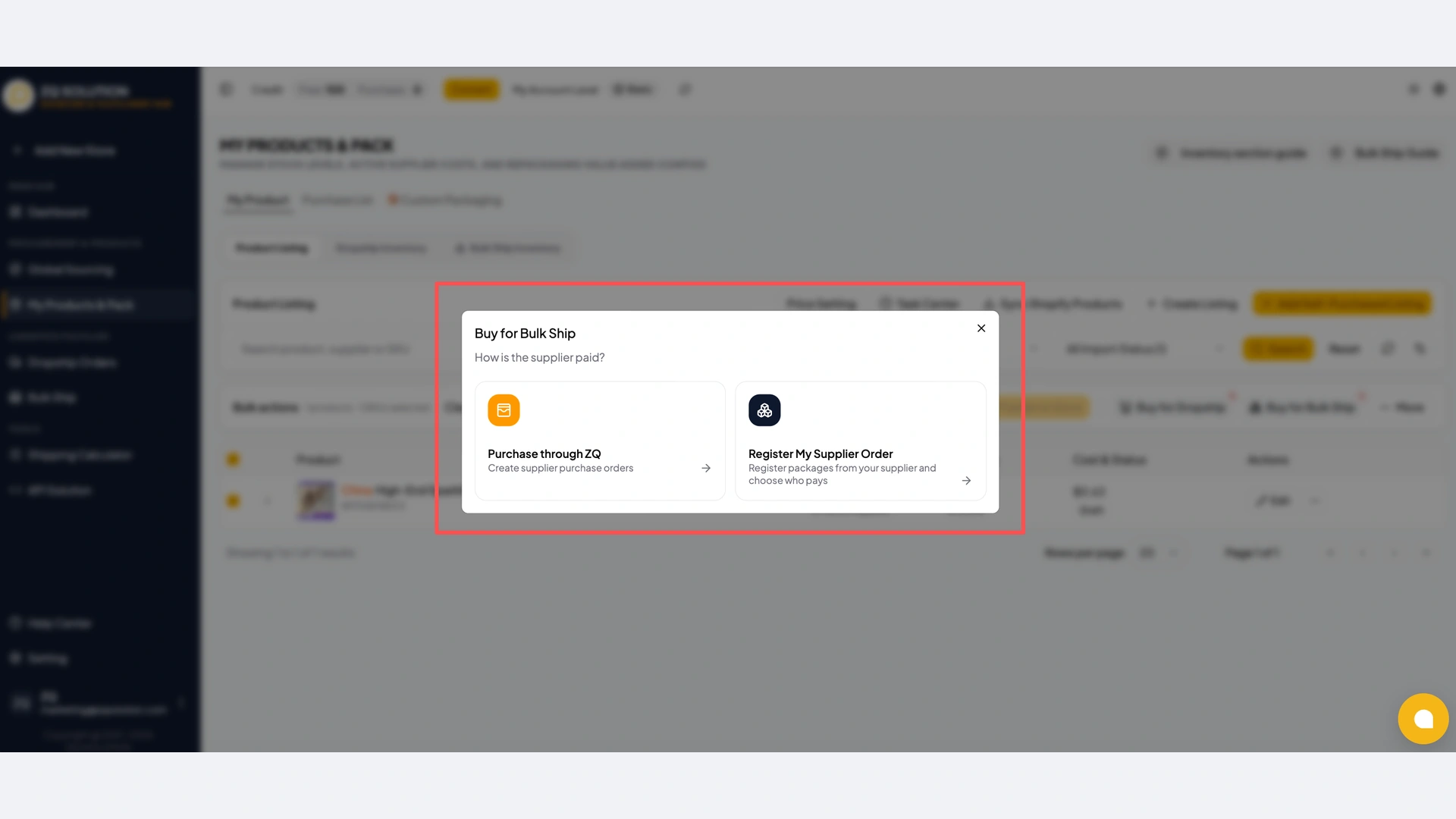
Have several suppliers ship small batches to Shenzhen, then combine multiple SKUs into one outbound shipment. Bulk Ship can also handle furniture, oversized goods, and irregular cargo depending on the shipment. Select the goods in Product Listing, click Buy for Bulk Ship, and choose whether ZQ will purchase the goods or you’ll register an order from your own supplier.
When ZQ purchases the goods
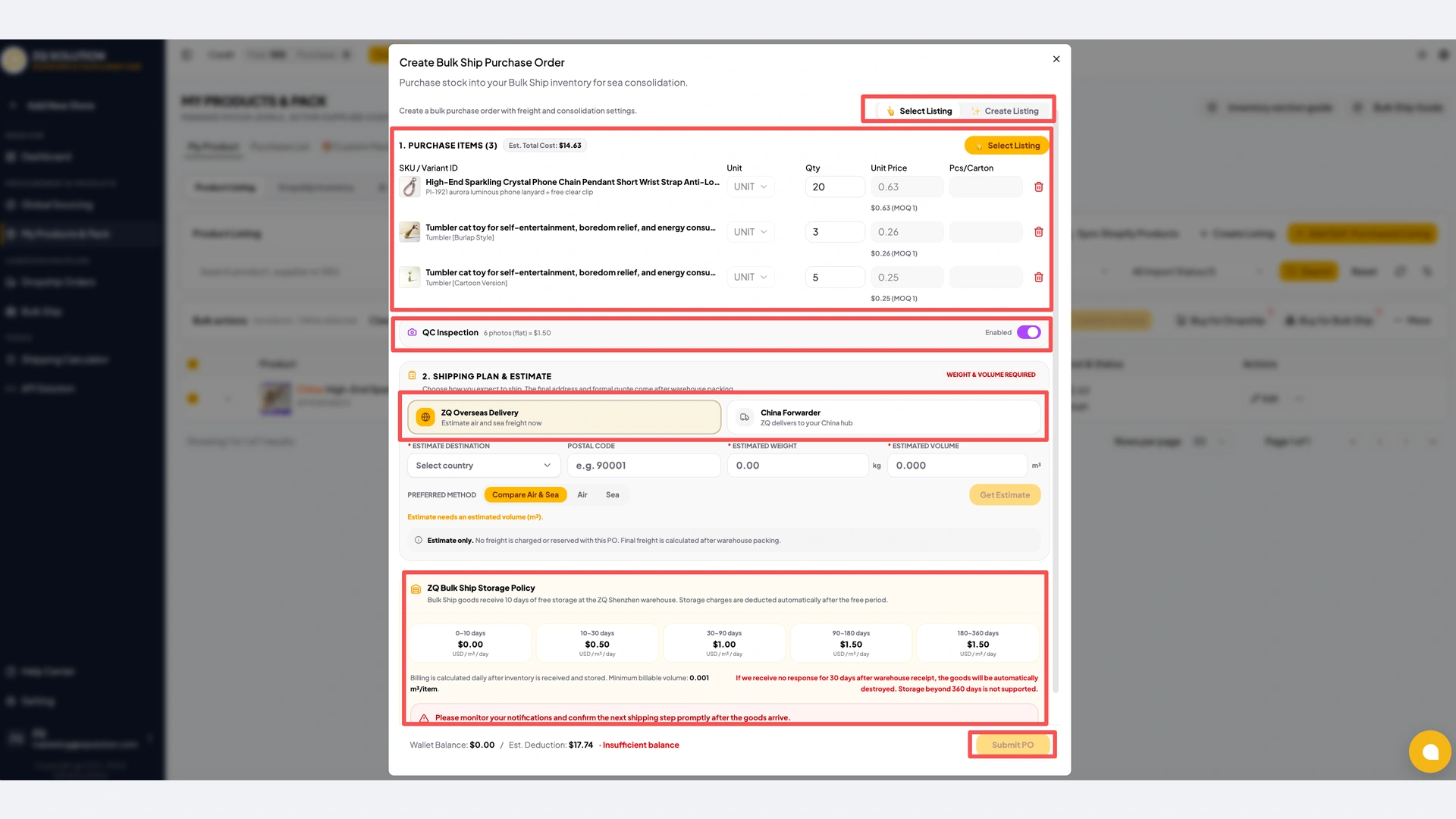
Choose Purchase through ZQ. Use Select Listing for a saved product or Create Listing to add one. Check the variants, quantities, units, prices, and units per carton. With optional Bulk Ship QC, ZQ randomly selects six units in total for inspection and provides six photos. The fee is US$1.50.
Choose ZQ overseas delivery or handoff to your forwarder in China. Enter the destination, estimated weight, and volume for a preliminary freight estimate. ZQ calculates the final freight after packing. Once you create the Bulk Ship PO, follow the record under Bulk Ship.
When your own supplier ships to ZQ
Start at My Products & Pack → Product Listing → Add Self-Purchased Listing. Once the listing is ready, select it in Product Listing, click Buy for Bulk Ship, and select Register My Supplier Order. Copy the Shenzhen warehouse address for your supplier and ask them to put your ZQ customer code on the parcel.
Select the supplier and link the goods to the right products and variants. Enter the customs description, HS code, quantity, and unit price. Choose I already paid if you paid the supplier directly, or ZQ pays the supplier to pay through ZQ using your wallet balance. Accept the storage terms and submit the registration.
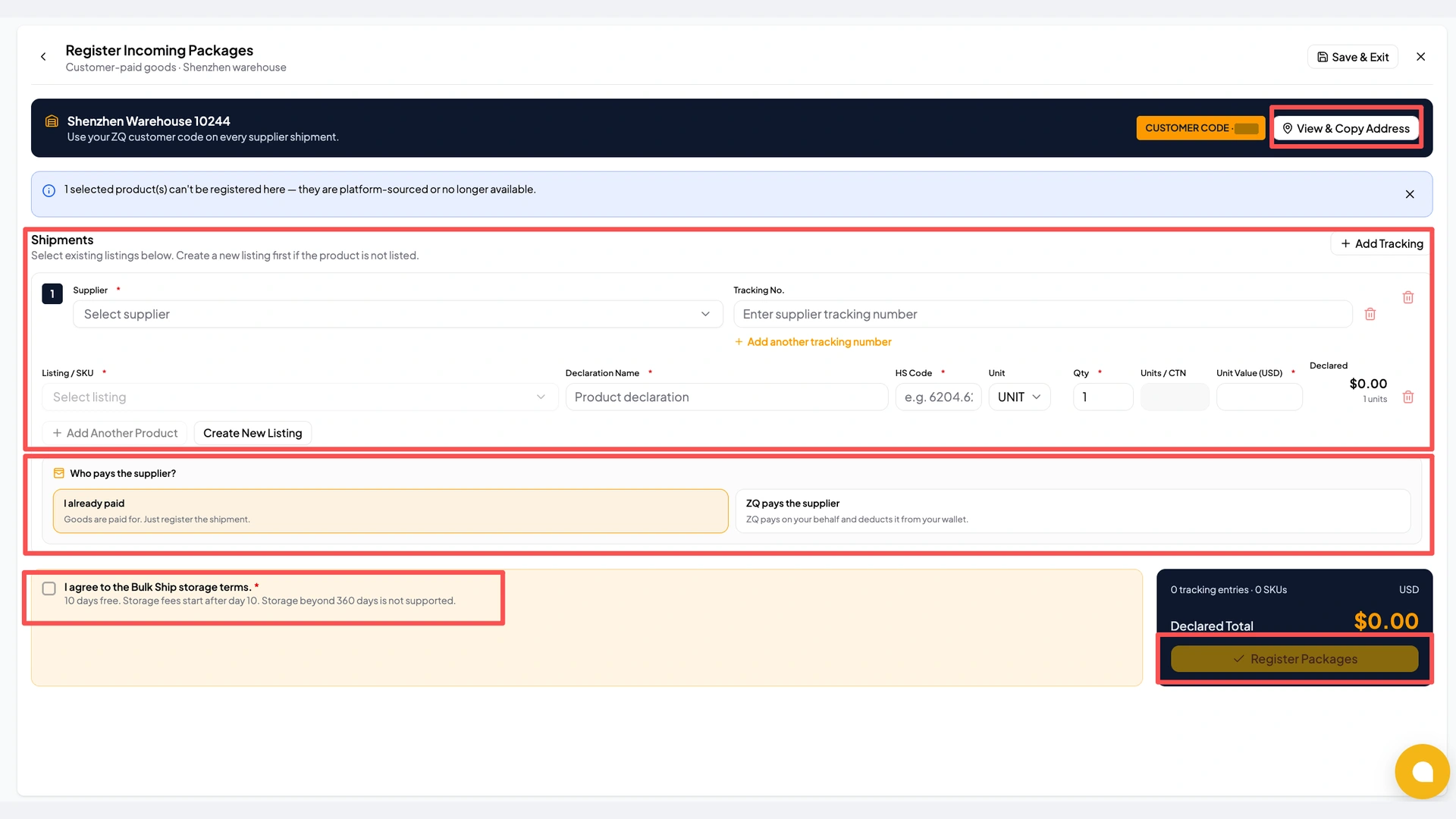
Once your supplier gives you the domestic tracking number, go to My Products & Pack → Purchase List and find the purchase record. Click the pencil icon under Tracking to add or update the number, then save it.
Choose inventory, packing, and delivery
- Go to
Bulk Ship → Create Shipmentand select stock that ZQ has received and made available. Find it by purchase order and SKU, then select full cartons or individual units. - Choose pickup at the Shenzhen warehouse, handoff to your forwarder, or delivery to your chosen address. ZQ can arrange delivery to warehouses for Amazon FBA, TikTok Shop, Temu, or bol. You can also send stock to a ZQ overseas warehouse for local picking and last-mile delivery.
- Submit your packing requirements. Options include SKU labels, corner protectors, waterproof outer bags, vacuum bags, and wooden crating. For marketplace warehouses, provide their packing and labeling requirements before submitting the packing request. After packing, ZQ checks each carton’s actual dimensions and weight and handles the outer labels according to the platform’s requirements.
Confirm the carton marks and request a freight quote
After packing, review the actual weight and volume and confirm the delivery address in Shipping Quote & Payment. Use numbered carton marks generated by the system or upload custom marks for ZQ to print and apply. Depending on the route, you can request residential delivery, liftgate unloading, inside placement, remote-area delivery, a delivery appointment, or cargo loss coverage.
Once you’ve selected the services you need, request the formal quote. Review the freight, cartons, reinforcement, and optional services before paying.
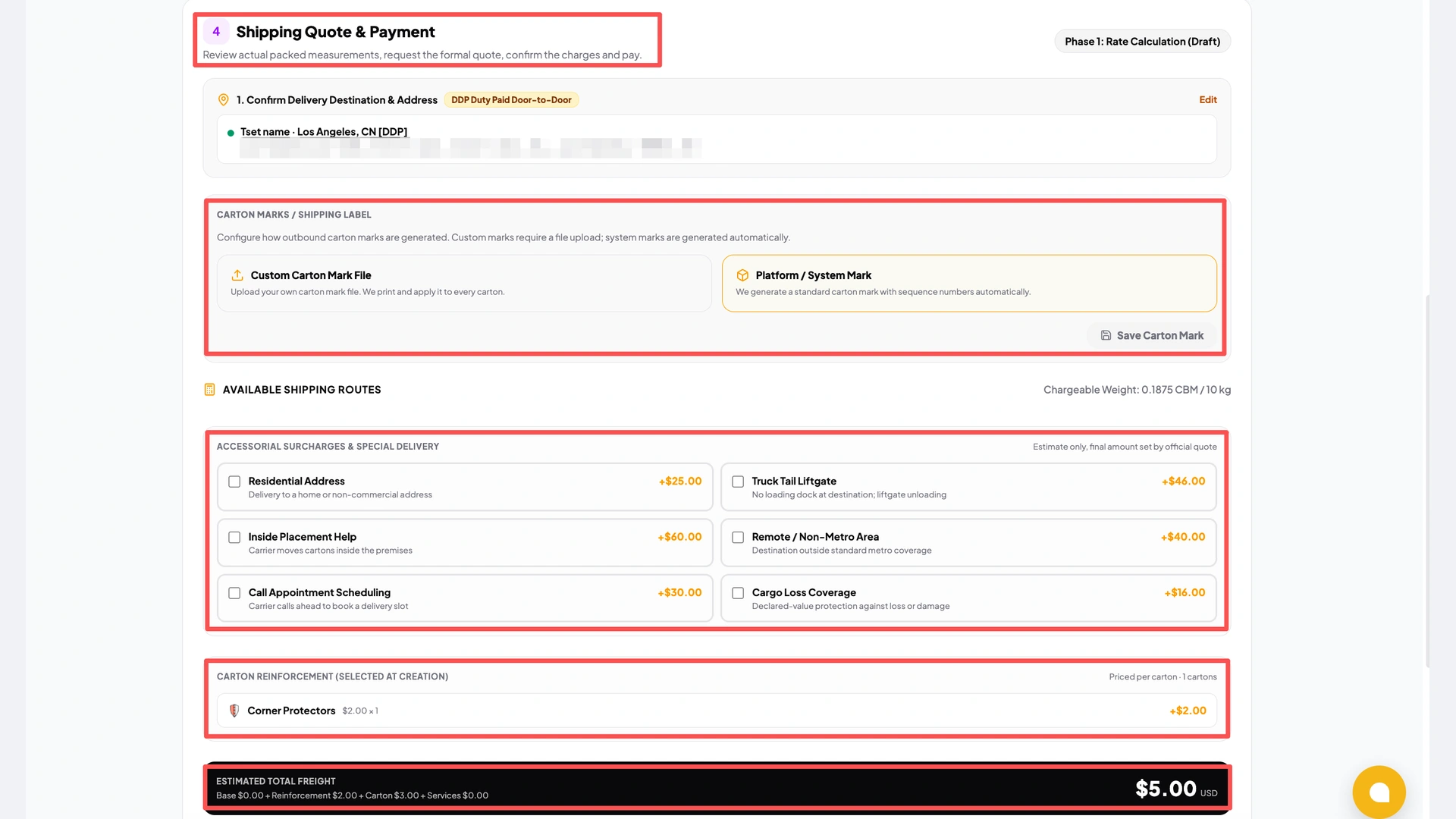
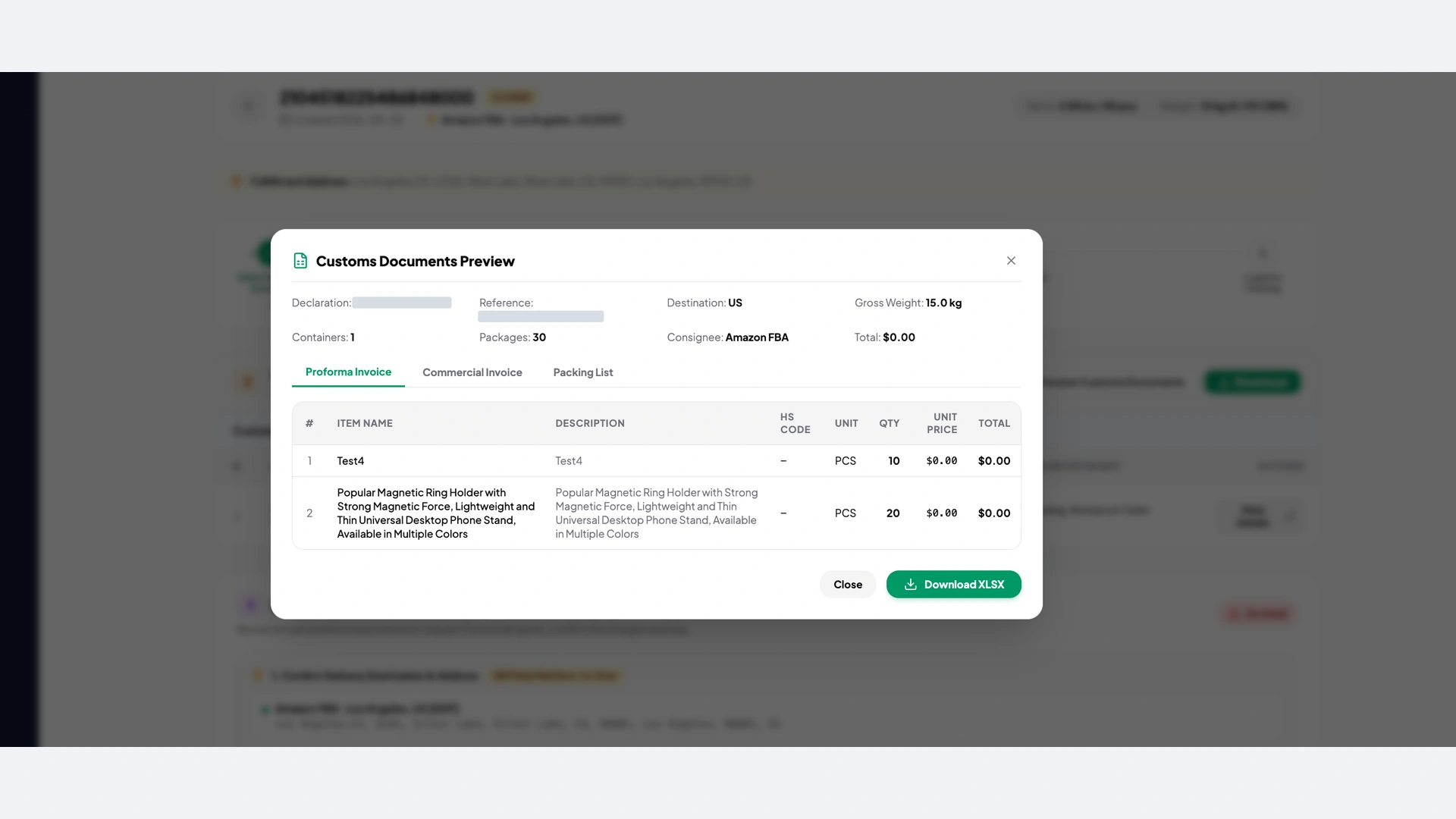
Download shipping documents
Open Customs Documents Preview to review the pro forma invoice (PI), commercial invoice (CI), or packing list (PL). Click Download XLSX to save the file for printing or your records.
What are your options for branded packaging?
Order branded packaging in ZQ
Open My Products & Pack → Custom Packaging to add your branding to poly mailers, thank-you cards, packing tape, or standard corrugated mailer boxes. Choose the type, size, and quantity, then upload your logo or enter a text logo. Preview the size and placement, pick the warehouse that will stock the materials, and check the price. Order separately for each warehouse that will use the packaging.
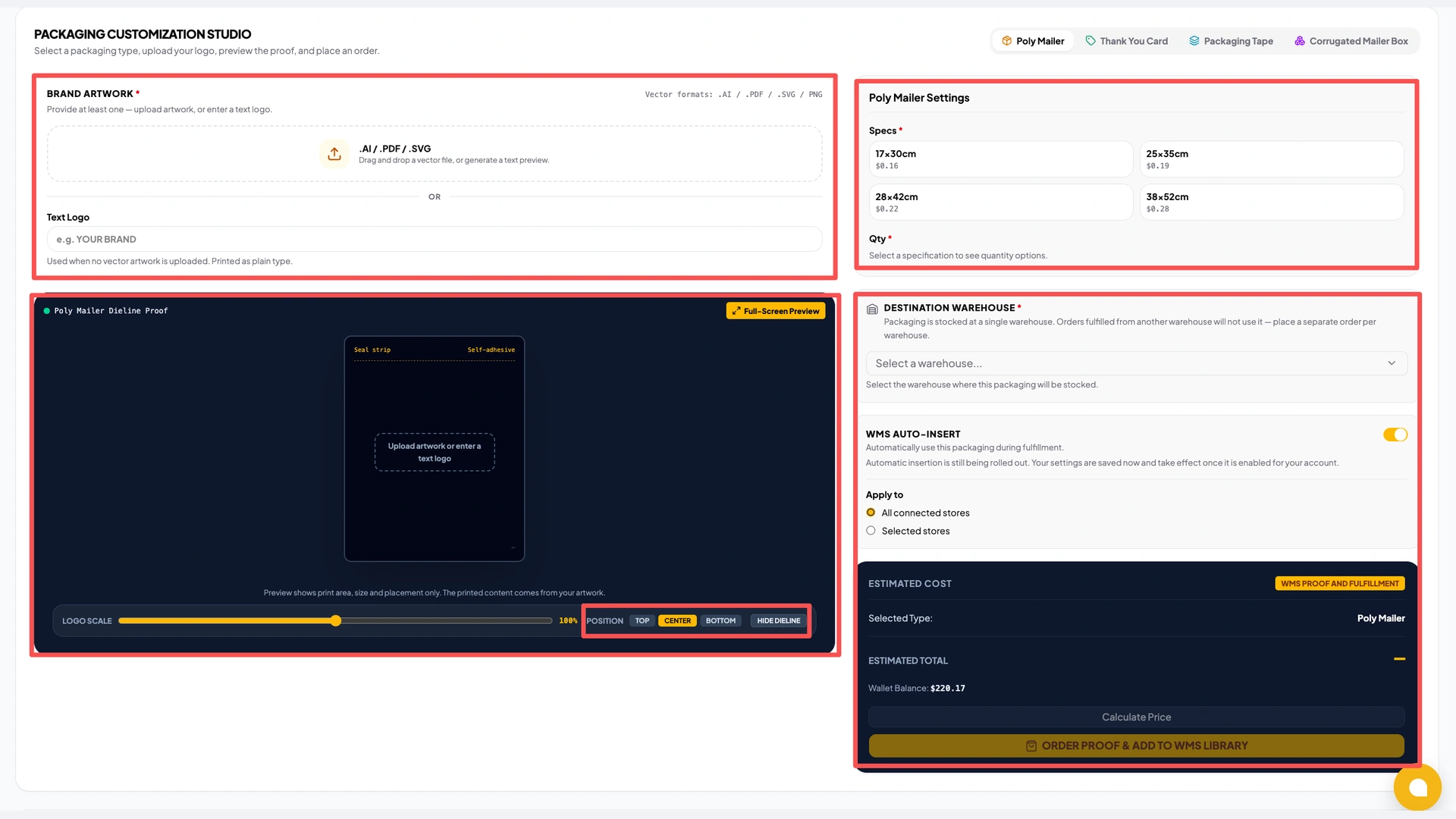
The US$29.90 Brand Starter Bundle includes 100 standard 28 × 42 cm poly mailers, 100 A6 thank-you cards, and five rolls of branded tape. The bundle’s cards use a centered logo. Order cards separately if you want a full card design.
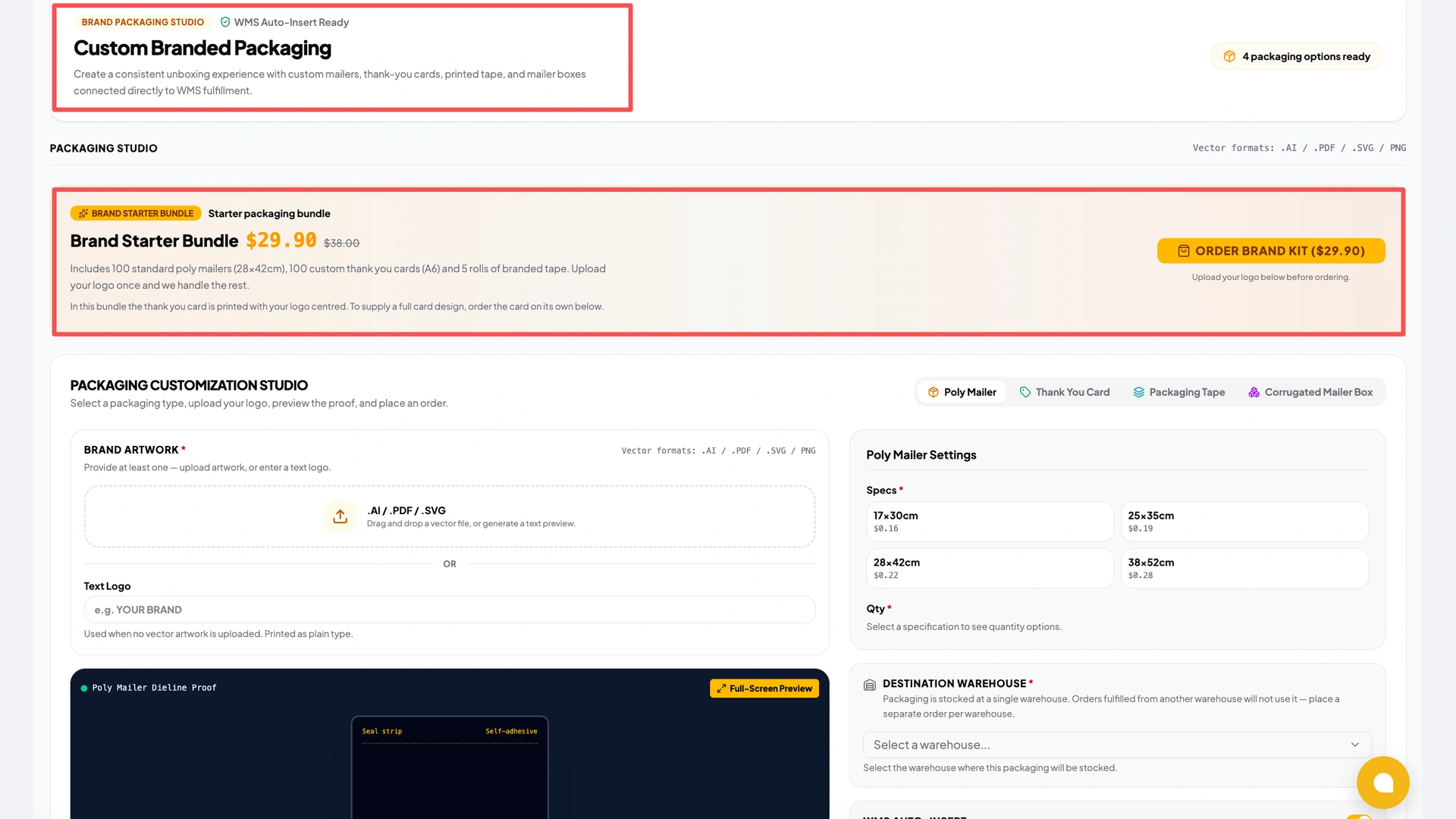
With WMS Auto-Insert, ZQ’s warehouse can automatically use your chosen packaging when packing orders. You can save the settings for all connected stores or just the ones you select. The settings take effect once ZQ enables Auto-Insert for your account.
Source custom packaging or send your own materials
For a custom mailer box, a special size, or a fully printed box design, send ZQ your logo, specs, and estimated quantity. The team can help you find a packaging supplier. Minimum order quantities depend on the supplier and specs. If you already have a packaging supplier, have them ship your materials to the agreed ZQ warehouse and give ZQ your packing instructions.
ZQ quotes labor for seller-supplied materials based on the packing steps involved. More time-consuming packing steps may increase the labor cost. Share details such as box assembly, individual wrapping, and insert placement so ZQ can quote the work.
What does sourcing and fulfillment cost?
Product prices, purchasing fees, and account plans
Budget for the supplier’s product price and the services you use, such as purchasing, inspection, packing, and shipping. When ZQ purchases on your behalf, it lists the purchasing fee separately and uses the supplier’s product price without a markup. You can verify marketplace prices using the original product link. ZQ uses the official 1688 API for its 1688 purchasing workflow. For prices negotiated directly with a supplier, use the agreed amount. Account subscriptions are separate from order costs.
| Plan details | Basic | Advanced | Enterprise |
|---|---|---|---|
| Monthly subscription | US$0 | US$29.90 | US$299 |
| Purchasing fee rate | 7% | 3% | 0% |
| Fee on a US$20 item | US$1.40 | US$0.60 | US$0 |
| Connected stores | 1 | 5 | Unlimited |
| Monthly AI listing credits | 100 | 4,000 | 50,000 |
| Publish a listing to your store | 50 credits per listing | 1 credit per listing | Unlimited |
| ZQ API, dedicated support group, and manual sourcing | — | Included | Included |
| Custom system development | — | — | Available on request for an additional fee |
Each plan includes monthly AI listing credits, 1688 catalog access, the Chrome extension, and Auto-Fulfill. Advanced and Enterprise also offer AliExpress account linking and order matching, plus access to additional sourcing catalogs. The publishing credits in the table are charged per listing and correspond to Listing import to selling platform in ZQ. For translation and image editing, check the credit usage shown in ZQ. See the purchasing fee guide.
Shenzhen warehouse and shipping fees
| Cost item | Rate or basis |
|---|---|
| Domestic freight to Shenzhen | Quoted by supplier and parcel. Freight from multiple suppliers is calculated separately. |
| Dropship parcel handling | US$1 for 1–4 items, US$2 for 5–8, and US$3 for 9–12. Each additional group of up to four items adds US$1. |
| Standard branded packing for Shenzhen dropship parcels | US$0.50 per parcel. Materials are charged separately. Labor for seller-supplied materials or special packing is quoted separately. |
| Bulk Ship inspection and packaging | Optional QC costs US$1.50 and covers six randomly selected units in total, with six photos. Example rates shown in ZQ are US$0.10 per SKU label, US$2 per carton for corner protection or waterproof outer bagging, US$3 per carton for vacuum bagging, and US$35 per carton for wooden crating. |
| Shenzhen Bulk Ship storage | Each batch’s storage period begins when it is received into inventory. The first 10 days are free. Days 11–30 cost US$0.50 per m³ per day and days 31–90 cost US$1.00 per m³ per day. Minimum billable volume is 0.001 m³ per item. |
| International freight, clearance, and last mile | Quoted based on the goods, packed dimensions, billable weight, destination, route, and import arrangements. The shipping calculator estimates small-parcel and bulk freight. For bulk estimates, check the route details for any included duties and import taxes. |
Delft warehouse fee examples
| Service | Published Delft rate examples |
|---|---|
| Unloading and putaway | Loose cartons cost €2 per carton to unload. Putaway costs €0.20–€8 per item by billable weight. An inbound order with more than five SKU types incurs €2 for each additional type. |
| Storage and one-item order handling | Storage costs €0.50–€2.50 per m³ per day, depending on stock age, with a minimum billable volume of 0.001 m³ per item. Standard handling for an order with one item costs €0.30–€12 per order by billable weight. |
| Last-mile delivery and returns | Delivery and applicable carrier surcharges are billed separately. Return intake and a quick inspection cost €2–€10 per item. |
Frequently asked questions
Can I keep my existing product listings if I switch to ZQ?
Yes. Connect your store to ZQ and map each existing store variant to the matching ZQ variant. You can keep your current product pages.
Can I try ZQ with one order before enabling Auto-Fulfill?
Yes. With Auto-Fulfill off, open an order under Dropship Orders and map the SKU if needed. Review the charges, then click Pay to process the order manually. You can follow the shipment and check that the tracking number appears on the original store order before deciding whether to enable Auto-Fulfill.
Can I fulfill one customer order at a time if my 1688 supplier has a minimum order quantity?
Yes, if you have available stock at a ZQ warehouse. The supplier’s minimum determines how many units you need to buy. Once those units are in stock, ZQ can pick and ship one unit at a time as customer orders come in. Check the supplier’s minimum and any applicable storage fees before deciding how much to buy.
What happens if my customer receives a damaged or incorrect item?
For international orders fulfilled and shipped by ZQ, contact ZQ customer service or your Customer Success Manager within seven business days of delivery. Submit a complete, uninterrupted unboxing video. Start by showing the unopened parcel, with the shipping label and barcode clearly visible, then record the entire unboxing and show the damage or the incorrect item.
If ZQ is responsible for sending the wrong item, you can receive a full refund. For severe package damage, you can receive a full refund or request a replacement shipment. For partial damage, any refund depends on the extent of the damage shown in the evidence. Read the ZQ Solution Refund Policy.
Get started with ZQ Solution
From sourcing, inspecting, and shipping a single item to consolidating multiple SKUs from different suppliers and fulfilling orders from overseas warehouses, ZQ can handle it for you.